Schedules.
Schedule pipelines and Maestros in Odara ETL: the cron builder, time zones, history, SMTP settings and email alerts.
7. Schedule
7.1 Overview
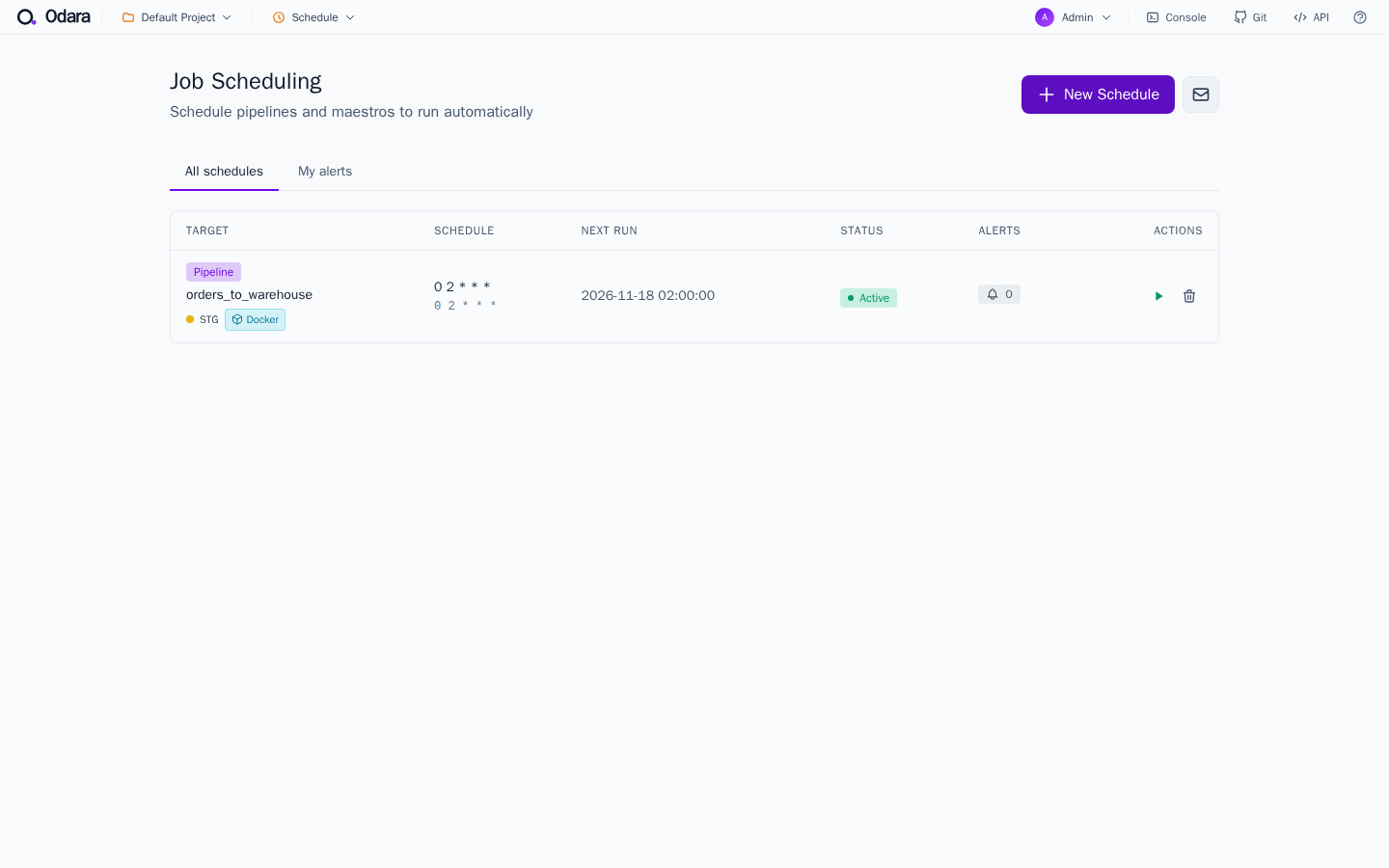
The Schedule page lets you run pipelines or maestros automatically on a cron schedule. Each schedule has a target (pipeline or maestro), a cron expression, a timezone, and optional email alerts on success or failure.
7.2 Cron builder
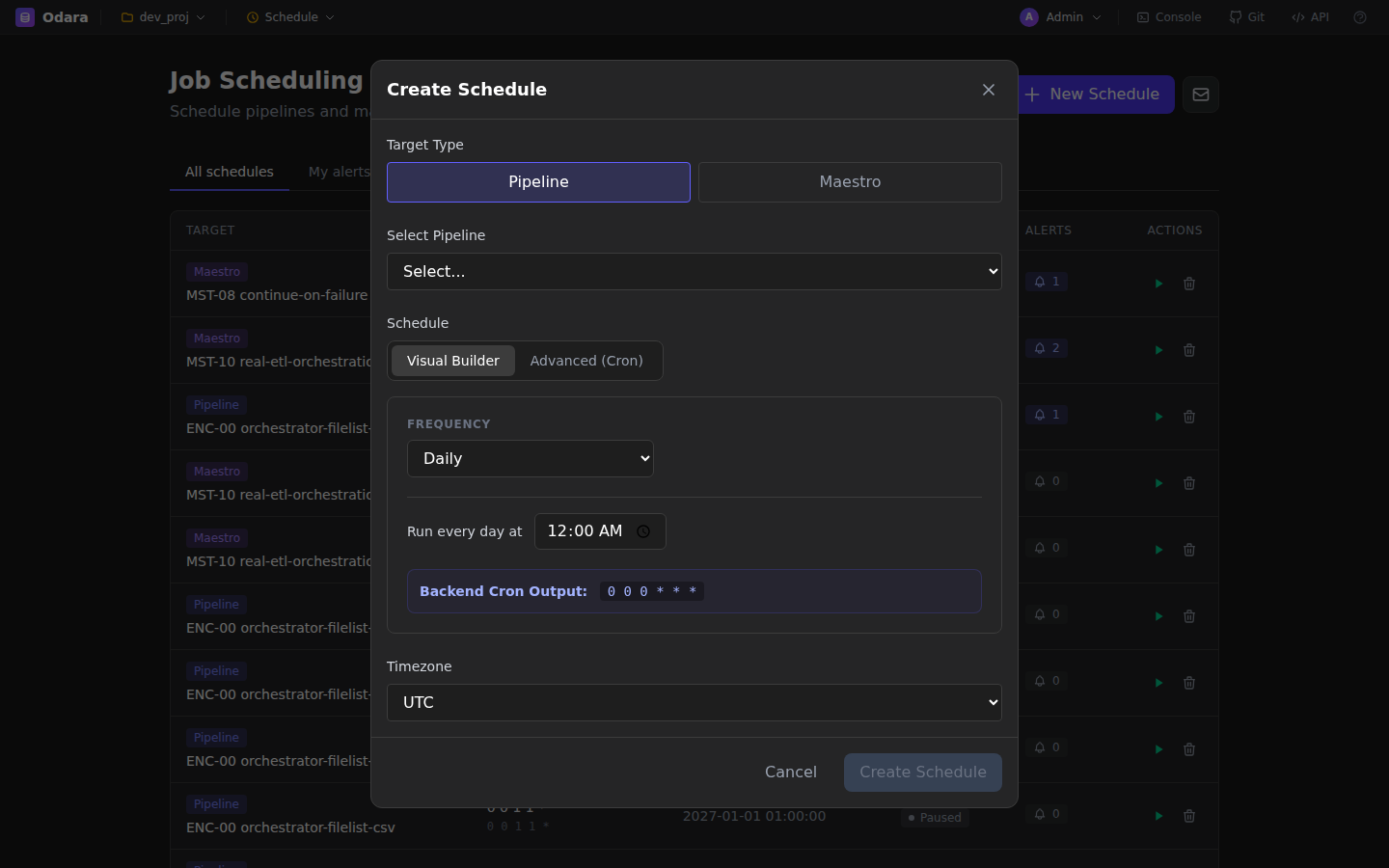
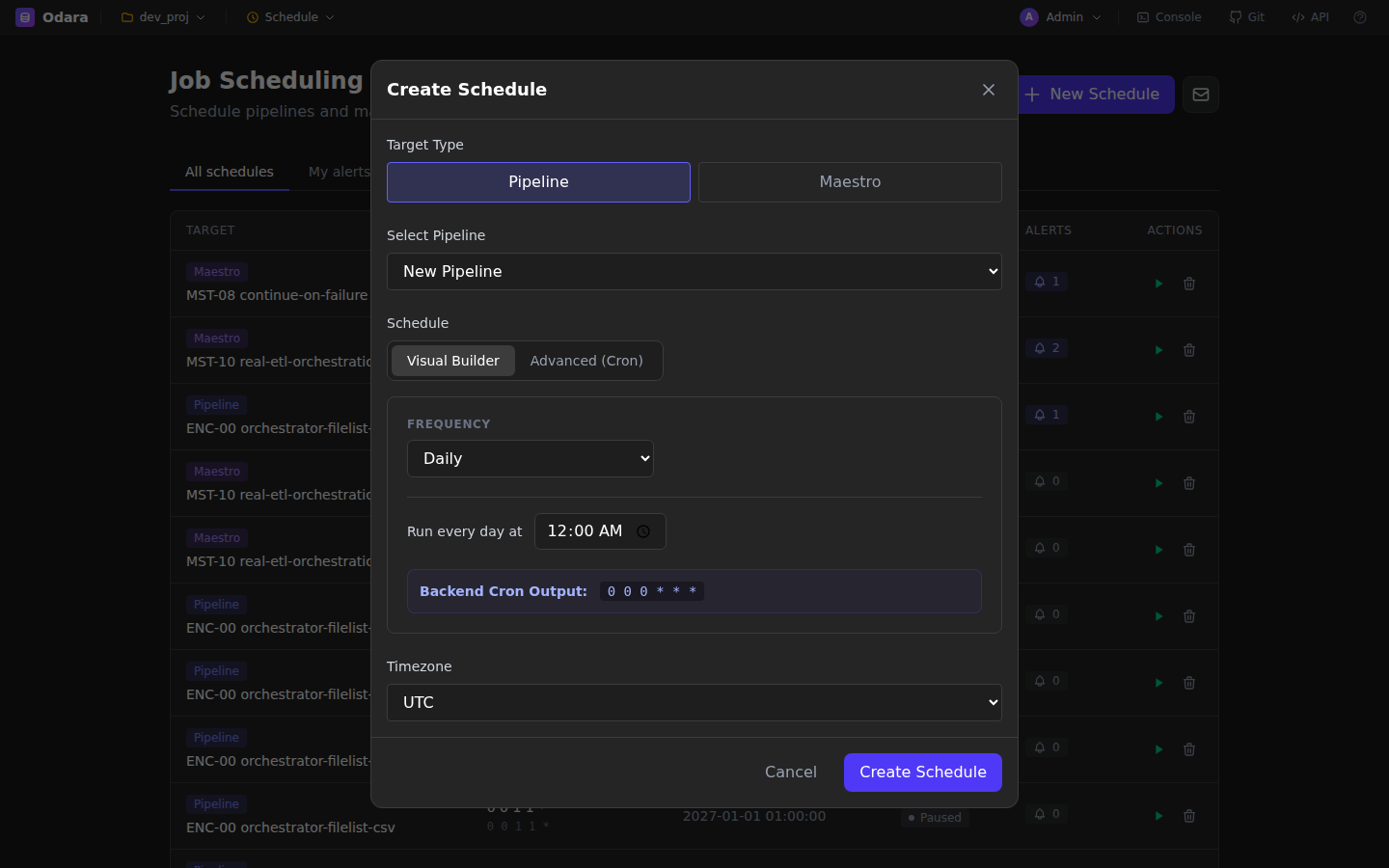
Click + New Schedule to open the cron builder. You can:
- Enter a raw 5-field cron expression (e.g.,
0 3 * * *for daily at 03:00). - Use the visual presets (hourly, daily, weekly, monthly) to generate the expression.
- See the Backend Cron Output for quick verification.
7.3 Timezones
Each schedule is bound to a timezone — the cron expression is evaluated in that timezone, not UTC. Common choices are America/Sao_Paulo, UTC, and America/New_York.
7.4 Associating pipelines and maestros
When creating a schedule, choose whether to run a pipeline or a maestro, then pick from the dropdown. A schedule can also have a start and an end date: it won't fire before the start and switches itself off after the end.
7.8 Environment of a schedule
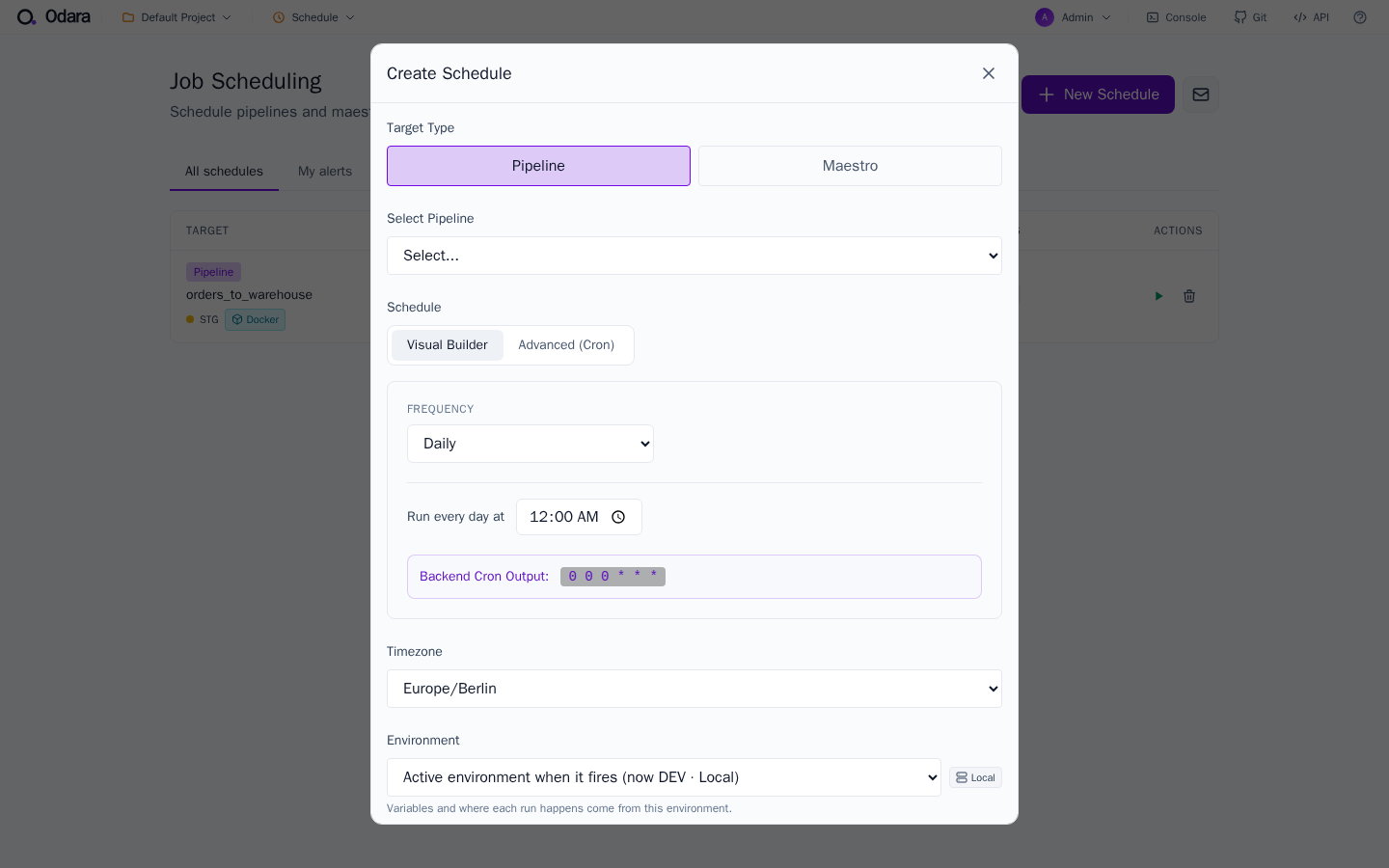
A schedule has an optional Environment. The Create / Edit Schedule dialog lists each environment with a badge saying where it runs (Local, Docker, AWS, Google); the schedule list shows it. Its runs use that environment's variable values and Execution setting — so the same pipeline can run nightly in PROD on AWS and hourly in STG on your server. Left empty, a schedule uses the environment that is active when it fires.
7.5 Execution history
Each schedule keeps the last 30 executions visible from its details page. For a full history with search/filter, use the Monitor page.
7.6 SMTP settings
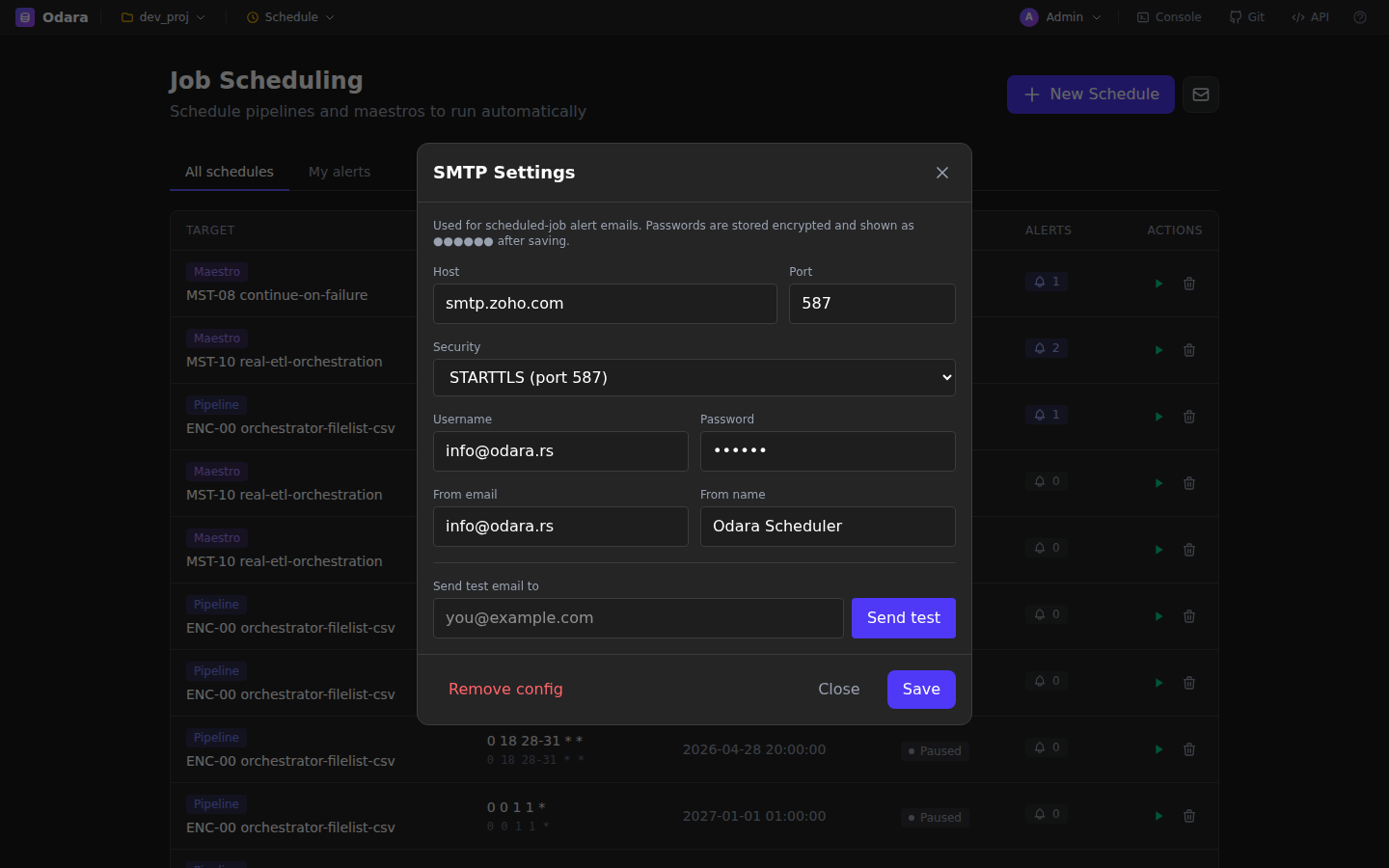
Click the mail icon in the top-right of the Schedule page to open SMTP settings. Configure host, port, security (none / STARTTLS / TLS), username, password, and sender address. Odara supports Gmail, Outlook, SendGrid, AWS SES, and any custom SMTP provider.
7.7 Email alerts & subscribers
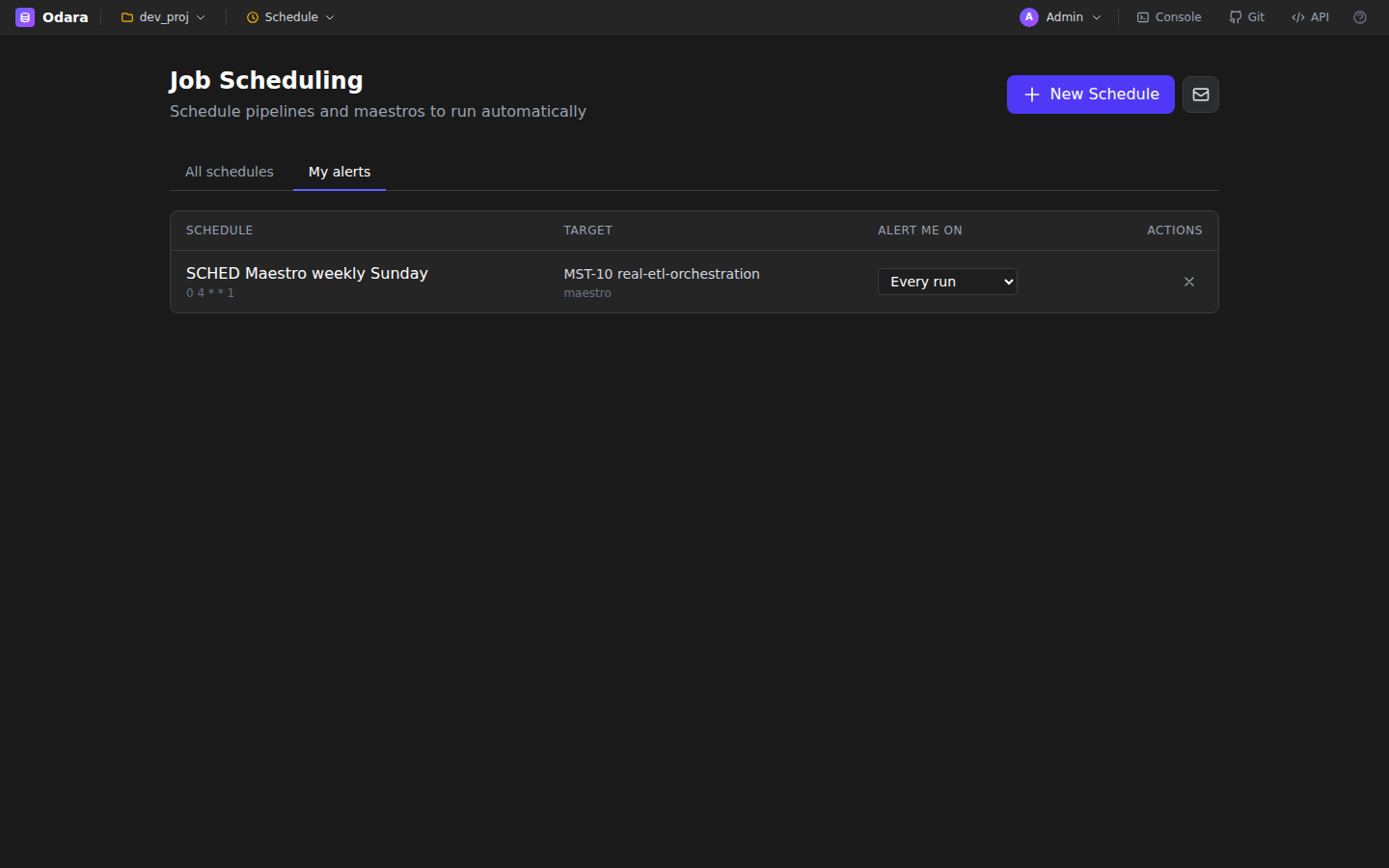
Alerts are per-user subscriptions, not per-schedule. Each subscriber picks their own trigger mode on a given schedule: All runs, Failures only, Successes only, or Custom thresholds (slow runs, low row count). Admins can also bulk-add all users of a role.
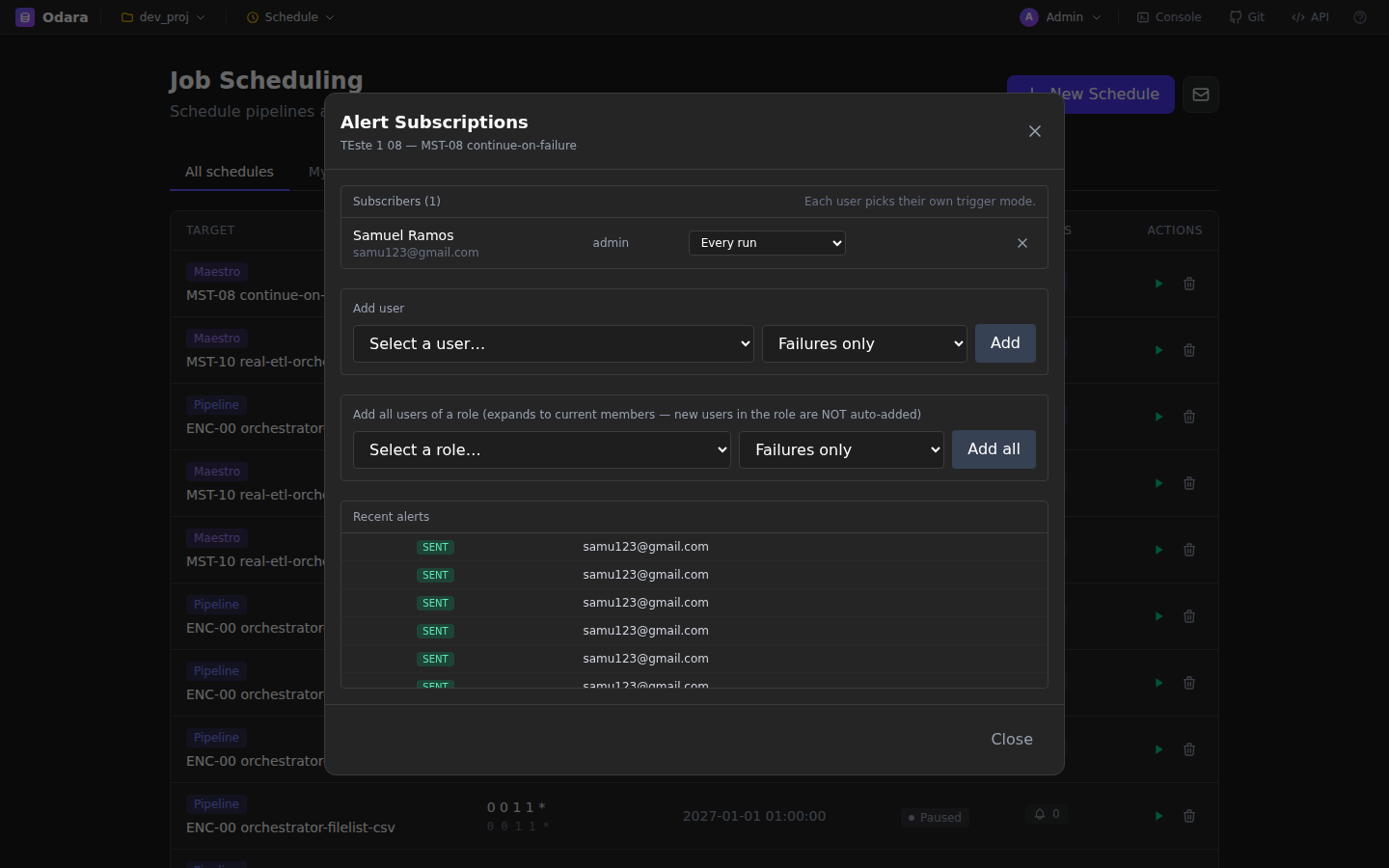
Alerts contain the schedule name, trigger (manual vs scheduled), timing, duration, row count, status, and error message (if any).