AI assistant.
The Odara ETL AI assistant: chat panel, provider settings, SQL and Python generation, pipeline generation and fixing errors.
11. AI Assistant
11.1 Chat panel
The AI Assistant is an in-editor chat panel (bottom-left purple button). You can ask it to generate pipelines, transforms, or fix errors. Open with the AI Assistant button or keyboard shortcut.
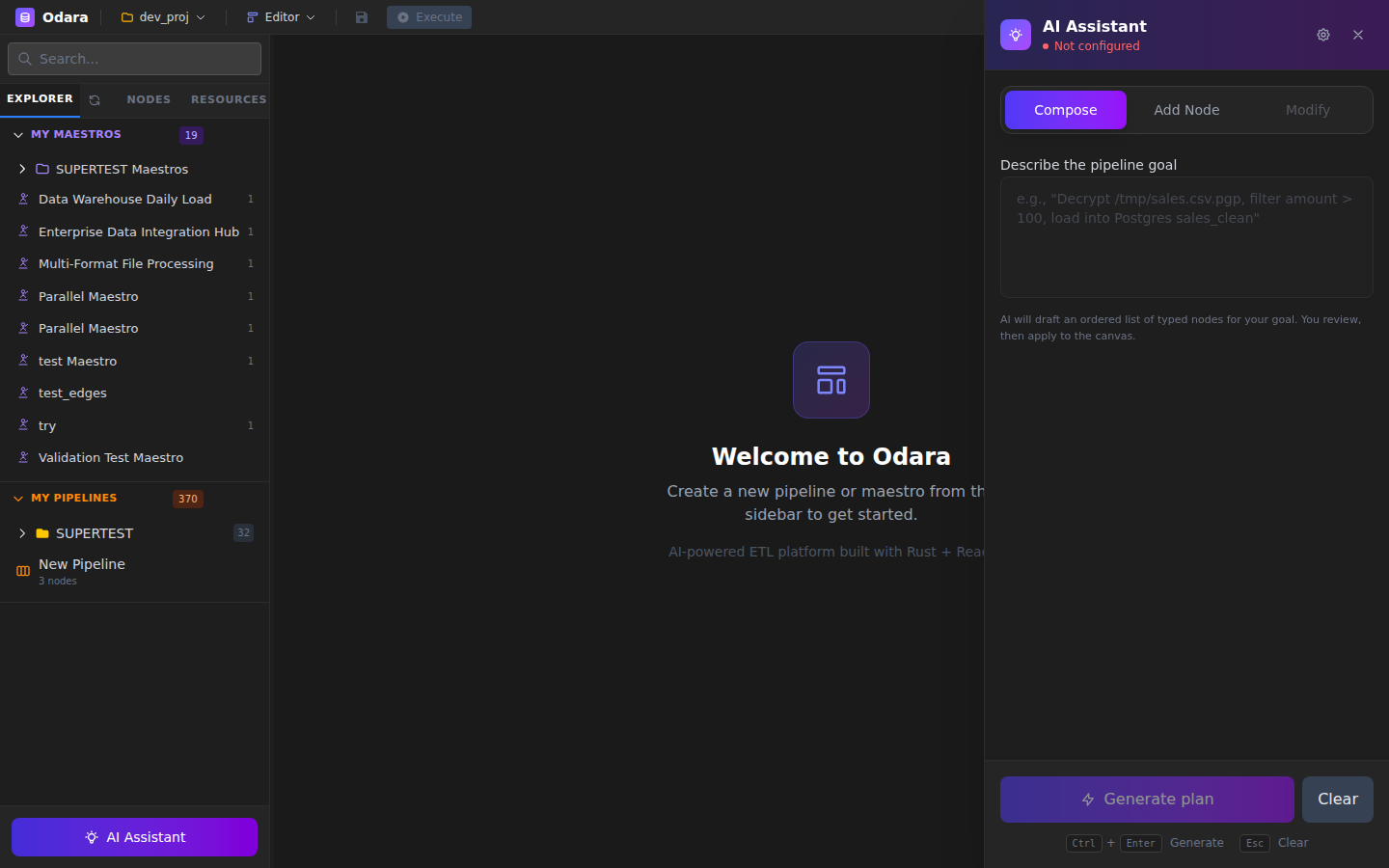
11.1.1 Three modes
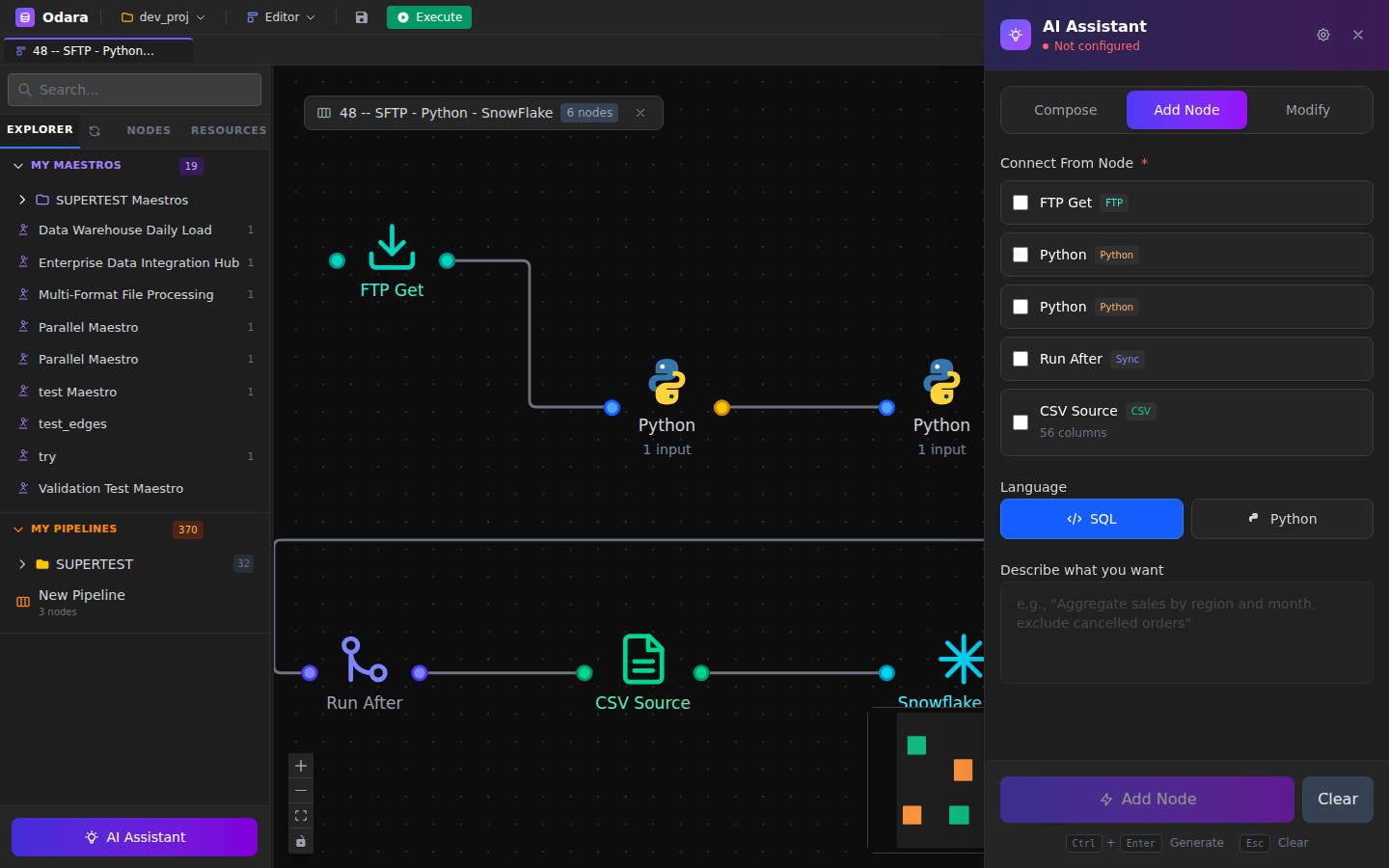
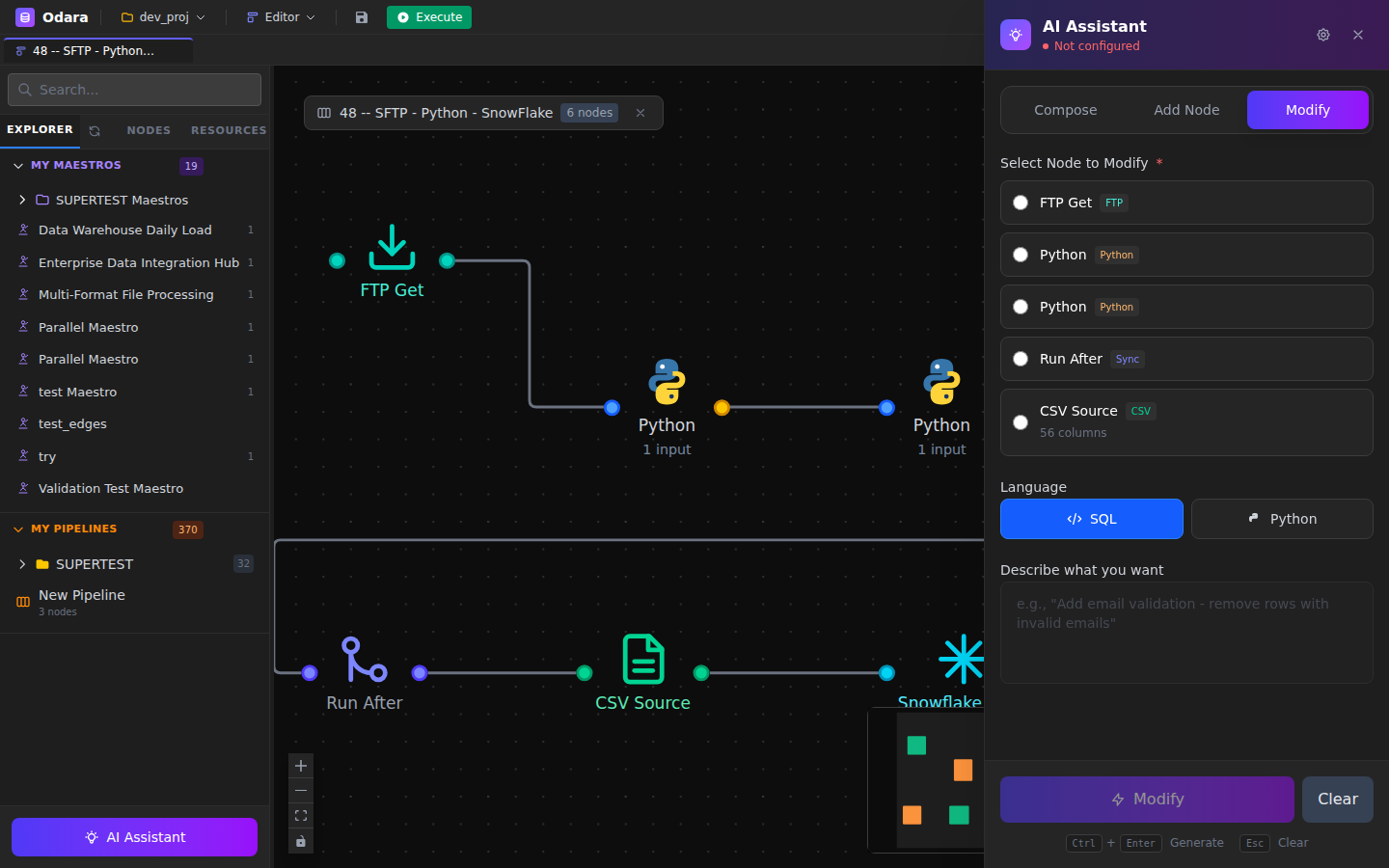
The panel is split into three tabs. Compose writes a full pipeline from a natural-language goal; Add Node attaches a new node to existing ones; Modify edits the code of a node already on the canvas.
11.2 Settings (providers)
Supported providers (pick one in the AI Settings dialog):
- DeepSeek (recommended for cost / code) — default model
deepseek-chat. - OpenAI — GPT models.
- Anthropic (Claude) — high-quality reasoning, good for complex pipelines.
- Google (Gemini) — multimodal support.
- MiniMax.
Open the gear icon in the AI Assistant header → pick a provider tab → paste its API key → choose a model (or Refresh models) → Test connection → save. Each provider's key is encrypted and stored separately, so switching providers later never loses a key. The status dot in the panel header turns green and shows the active provider/model.
11.3 Code generation (Add Node / Modify)
Code is generated from the AI Assistant panel, not from inside a node editor. Two modes:
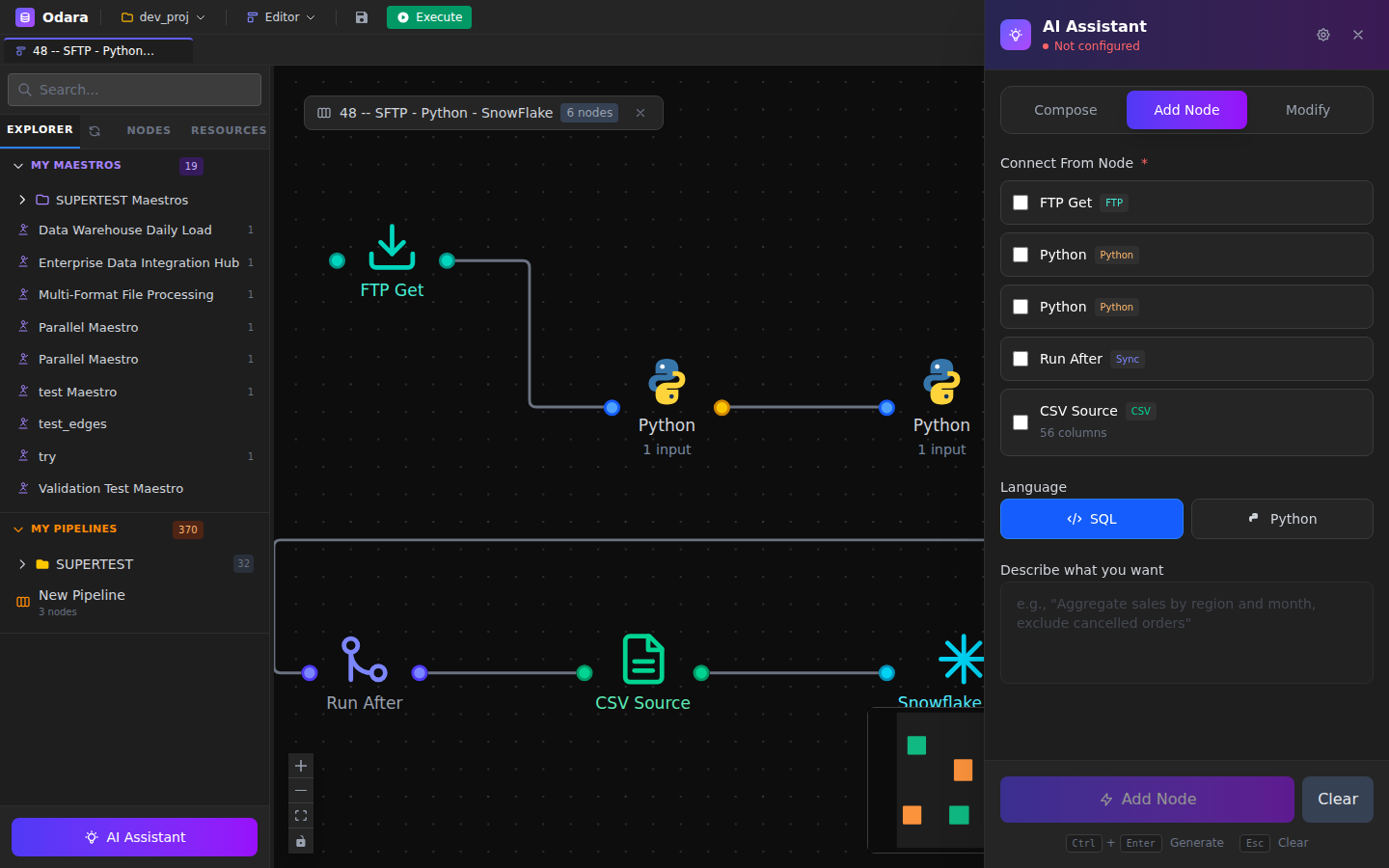
- Add Node — select one or more upstream source nodes, describe the transform, pick SQL or Python, and the AI adds a fully-written transform node wired to them. It sees the input columns/types, so the generated code references your real column names.
- Modify — select an existing transform node and describe a change (e.g., "add email validation"); the AI rewrites that node's code in place.
Always review the generated code before running — it gets you most of the way, you own the final check (input table name, type casts, dependencies).
11.4 Pipeline generation (plan → compose)
From a natural-language goal like "Load yesterday's sales CSV into Postgres and email me a summary", the AI:
- Plans the steps as a high-level sketch.
- Composes each step into a fully configured node, wiring them together.
- Places the pipeline on the canvas for your review.
11.5 Fix errors with AI
When a node fails during execution, a Fix with AI button appears next to the error. The AI reads the error message + the node's config and suggests a corrected version. Accept or reject inline.