Environment per run and per schedule
One line: pick the environment of one run in the editor's top bar (or in the API call), and pin a schedule to an environment. Its variables and where it runs both follow.
An environment (DEV, STG, PROD or any you create) answers two questions:
- Which values does a run use? Database hosts, users, passwords, keys: its variables.
- Where does it run? Its Execution setting: Local (inside the Odara server), Docker, AWS ECS Fargate or Google Cloud Run.
So the same pipeline, unchanged, can run Local while you build it in DEV, in a Docker container in STG and on AWS in PROD:
                ┌──────────────────────────┐
                │ Pipeline customers_by_   │   ← the same pipeline,
                │ region: S3→CSV→SQL→CSV→S3│     unchanged
                └────────────┬─────────────┘
          ┌──────────────────┼───────────────────┬────────────────────┐
          ▼                  ▼                   ▼                    ▼
   DEV: Local         STG: Docker         PROD: AWS Fargate     QA: Google Cloud Run
   in the server      a container on      a Fargate task        a Cloud Run job
                      the server          per run               execution per run
You will:
- Read the environments in Admin
- Run one pipeline in four environments from the editor
- See which environment each run used in the Monitor
- Run in an environment through the API
- Pin a schedule to an environment
It takes about 10 minutes. The screens come from a real Odara 0.4.1 with the four environments above, each run carried out for real.
1. The environments, in Admin
Open Admin › Environments (admins only).
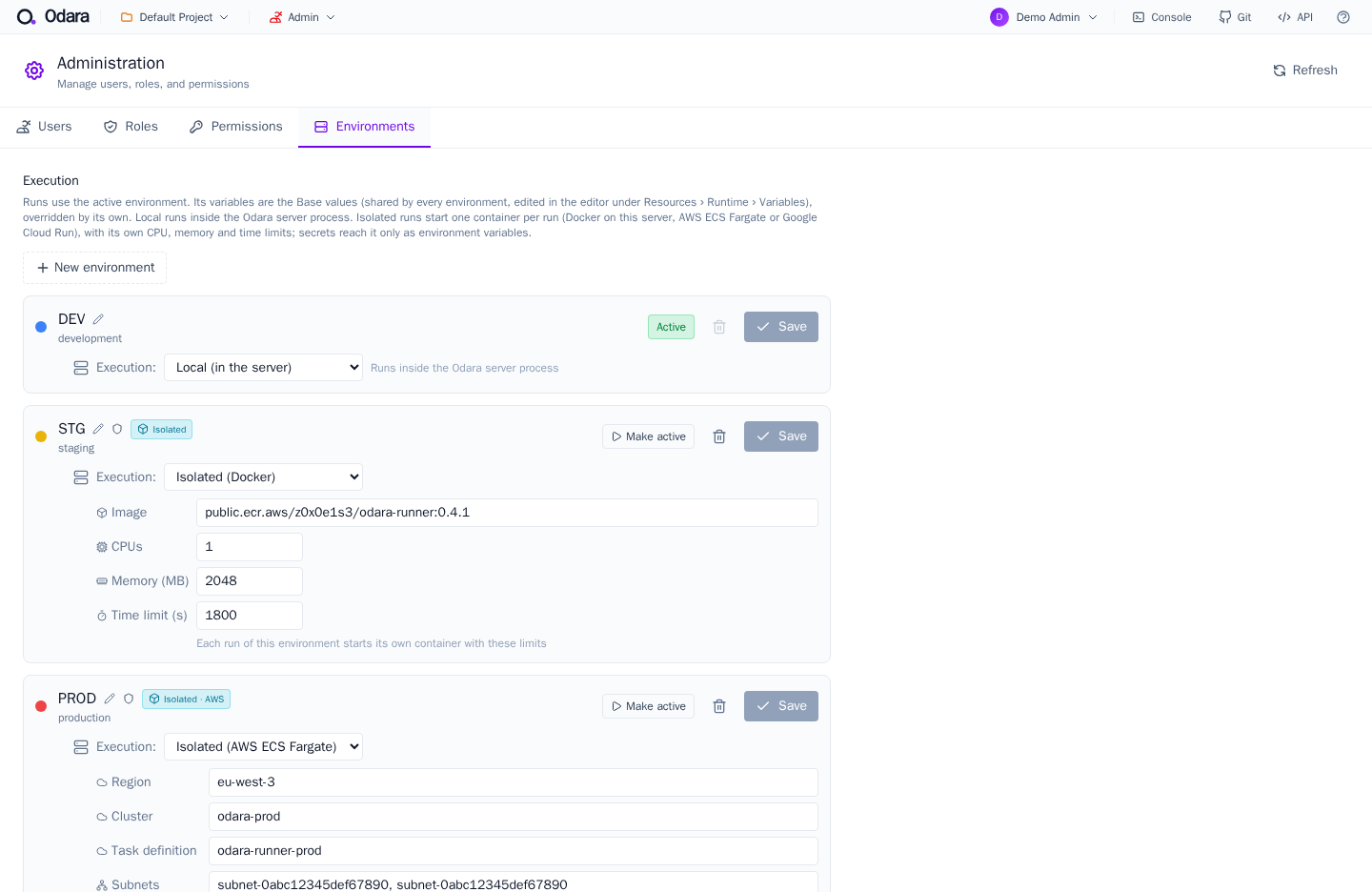
- Active marks the server's active environment (here DEV): the default for any run that doesn't choose one. The others have Make active.
- Execution says where that environment's runs happen. A new environment starts Local.
- The pencil renames an environment (the name you see). Its id —
development,staging,production— never changes, so renaming breaks nothing.
And Base? Base is not an environment you run in. It holds the variable values shared by every environment; each environment only defines what differs, and its value wins. Edit it in the editor under Resources › Runtime › Variables.
Setting up the isolated modes is covered step by step in Docker, AWS ECS Fargate and Google Cloud Run.
2. One pipeline, four environments, from the editor
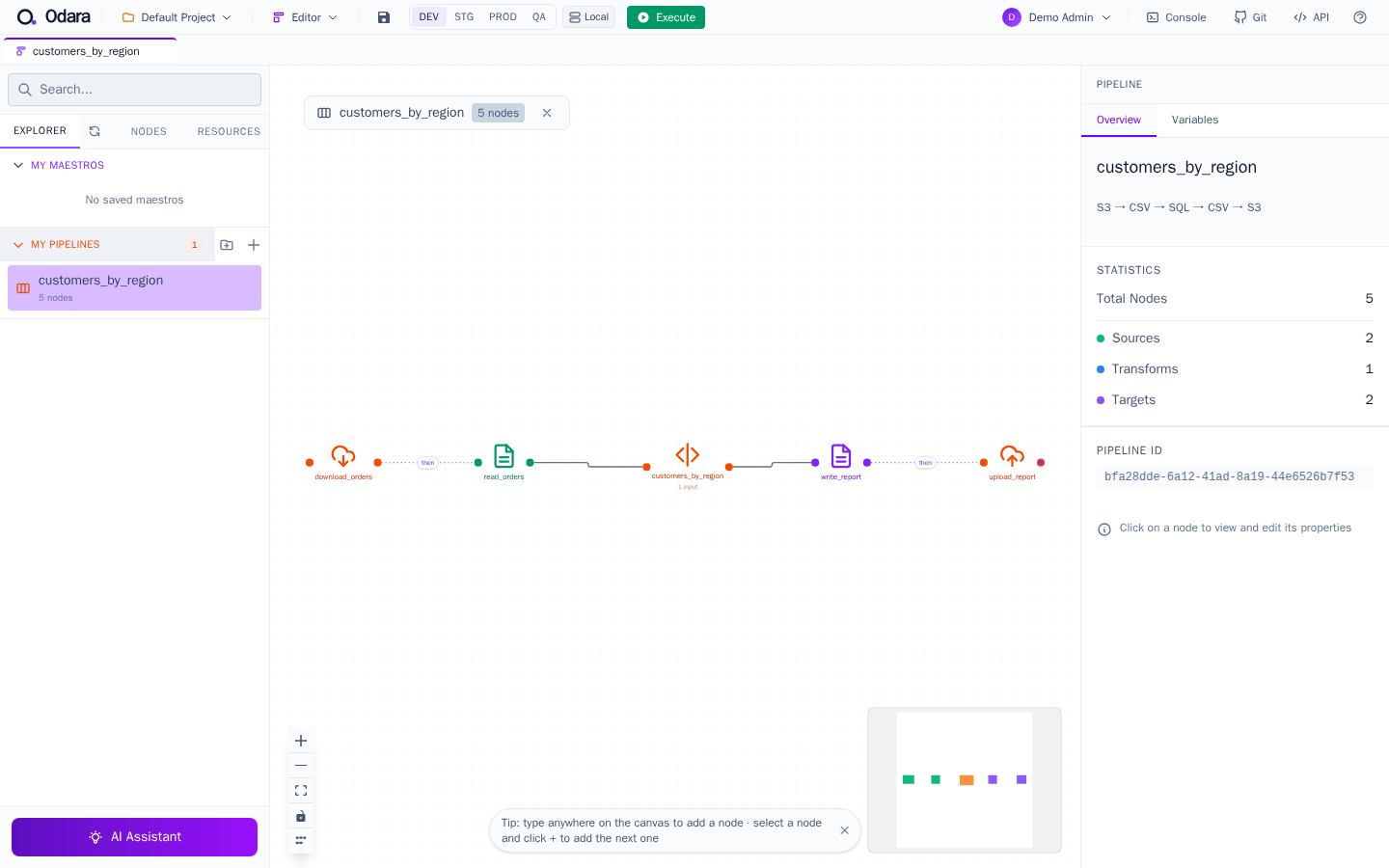
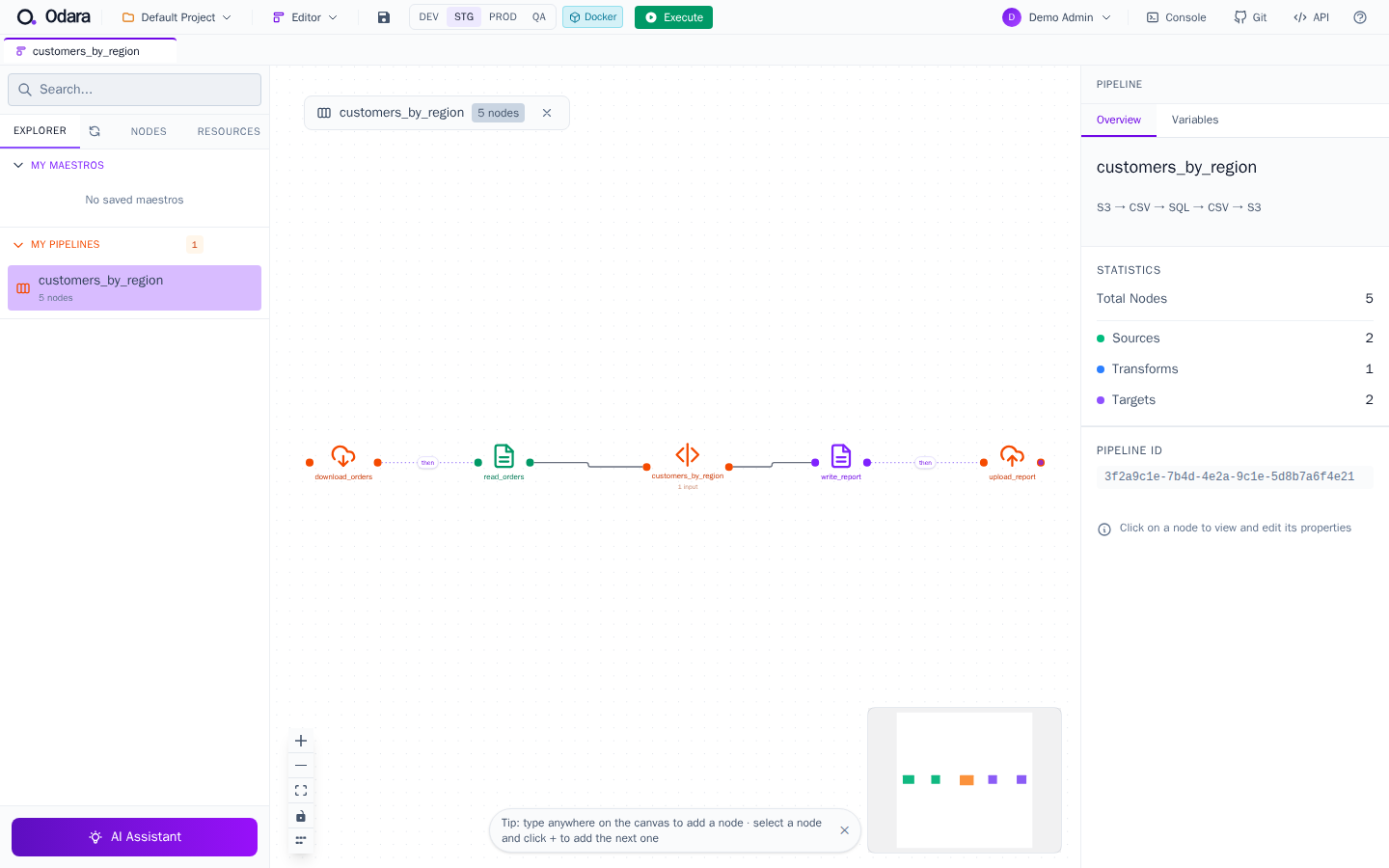
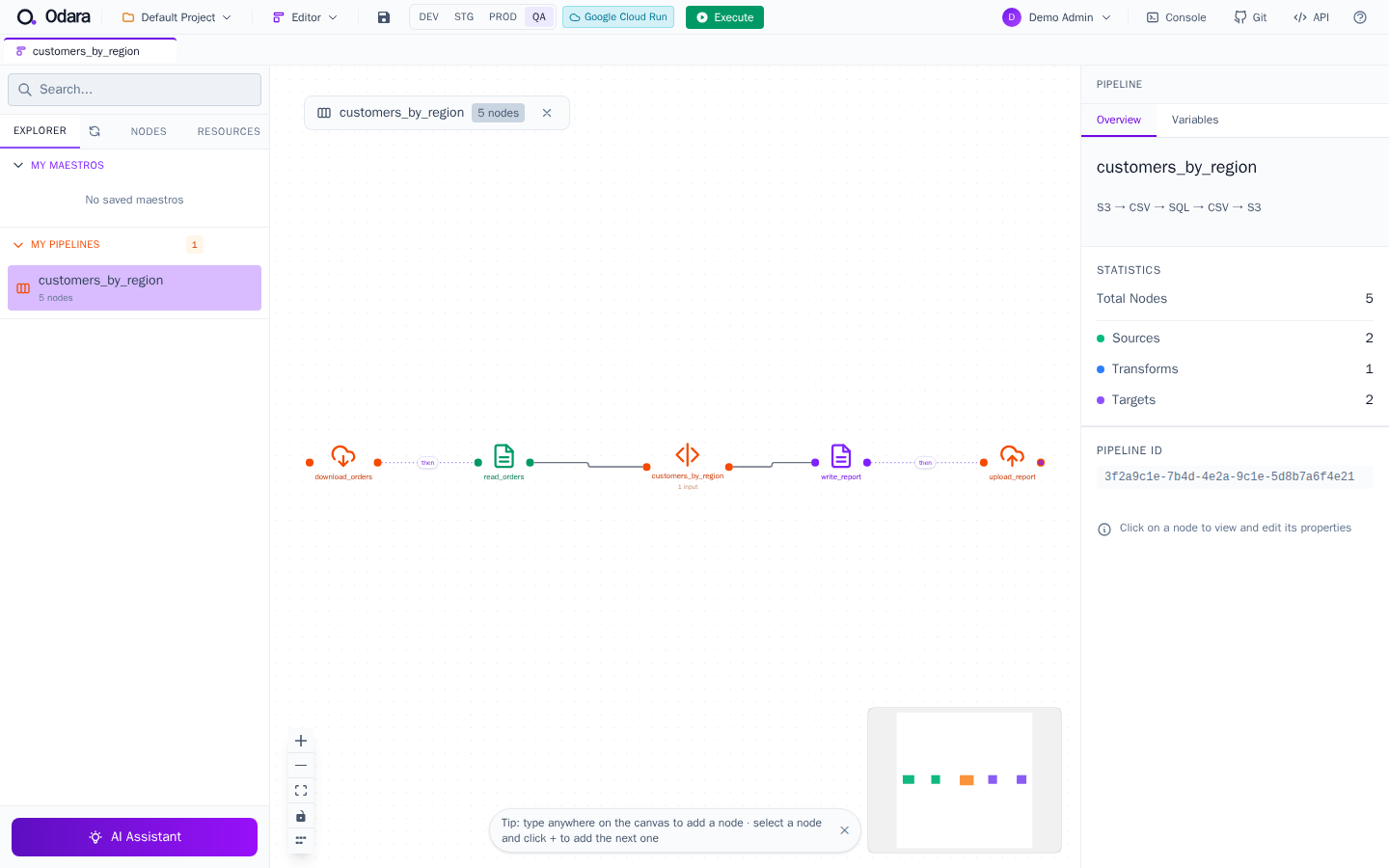
You don't need Admin to run in another environment. Open the pipeline in the Editor: the top bar lists the environments, and the badge next to Execute says where the chosen one runs.
DEV → Local:
STG → Docker:
QA → Google Cloud Run:
PROD → AWS ECS Fargate:
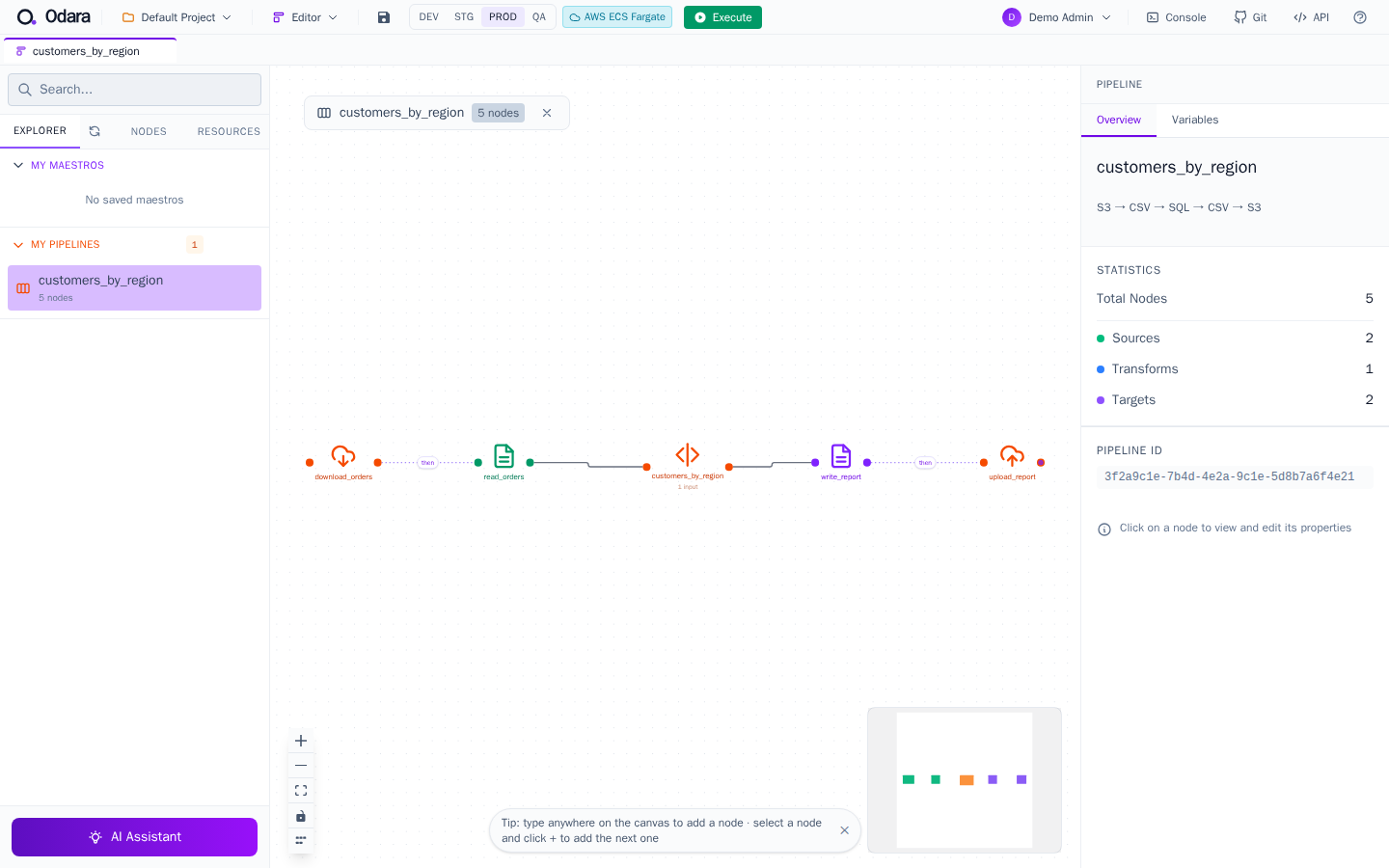
Click Execute: the run uses that environment's variables and goes where its Execution says.
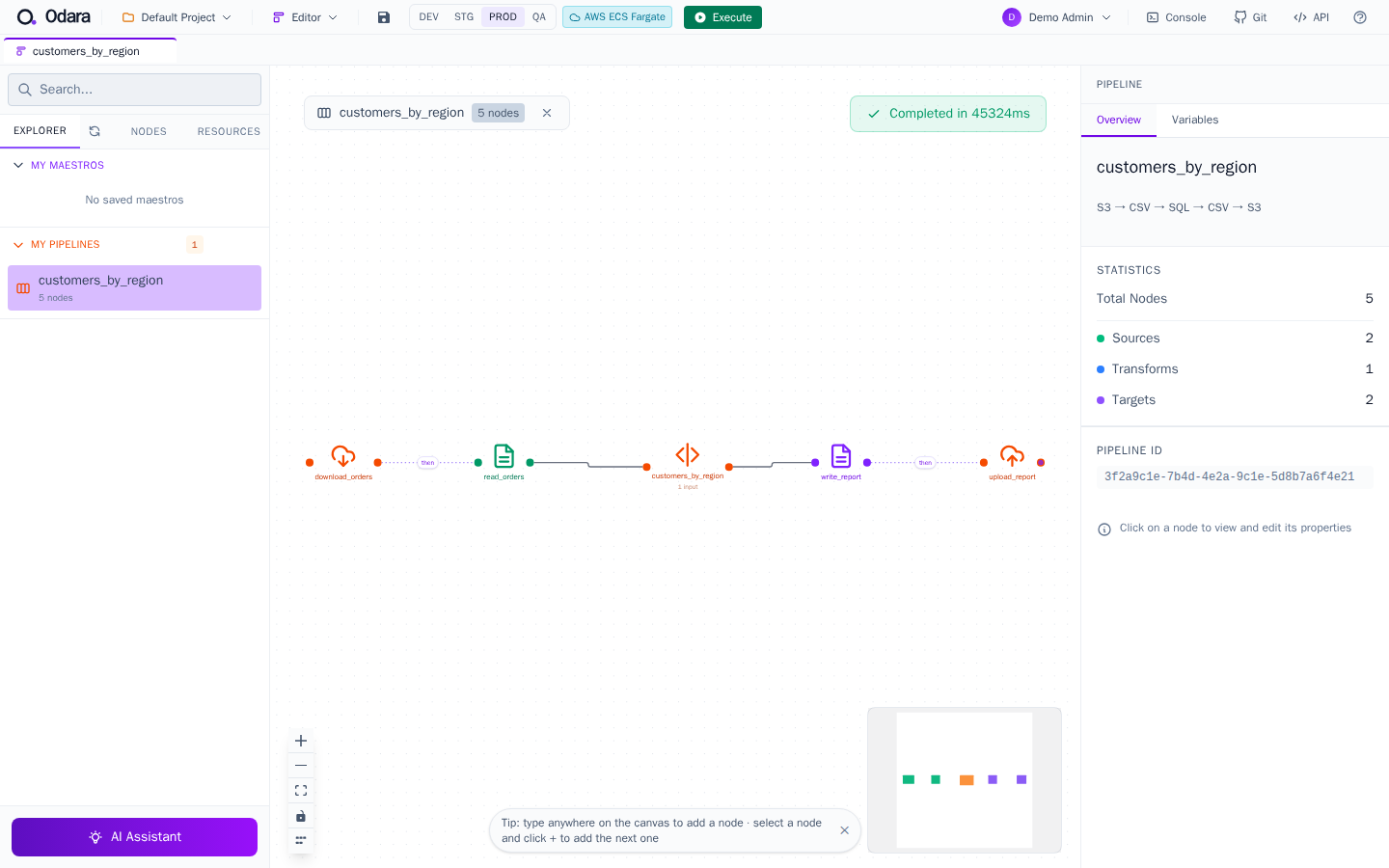
What the choice affects, and what it doesn't:
- It belongs to this pipeline's tab. Another tab can run in DEV while this one runs in PROD.
- It applies to Execute and to Preview. A preview always runs inside the server, with that environment's values.
- It does not change the server's active environment, other users, or any schedule.
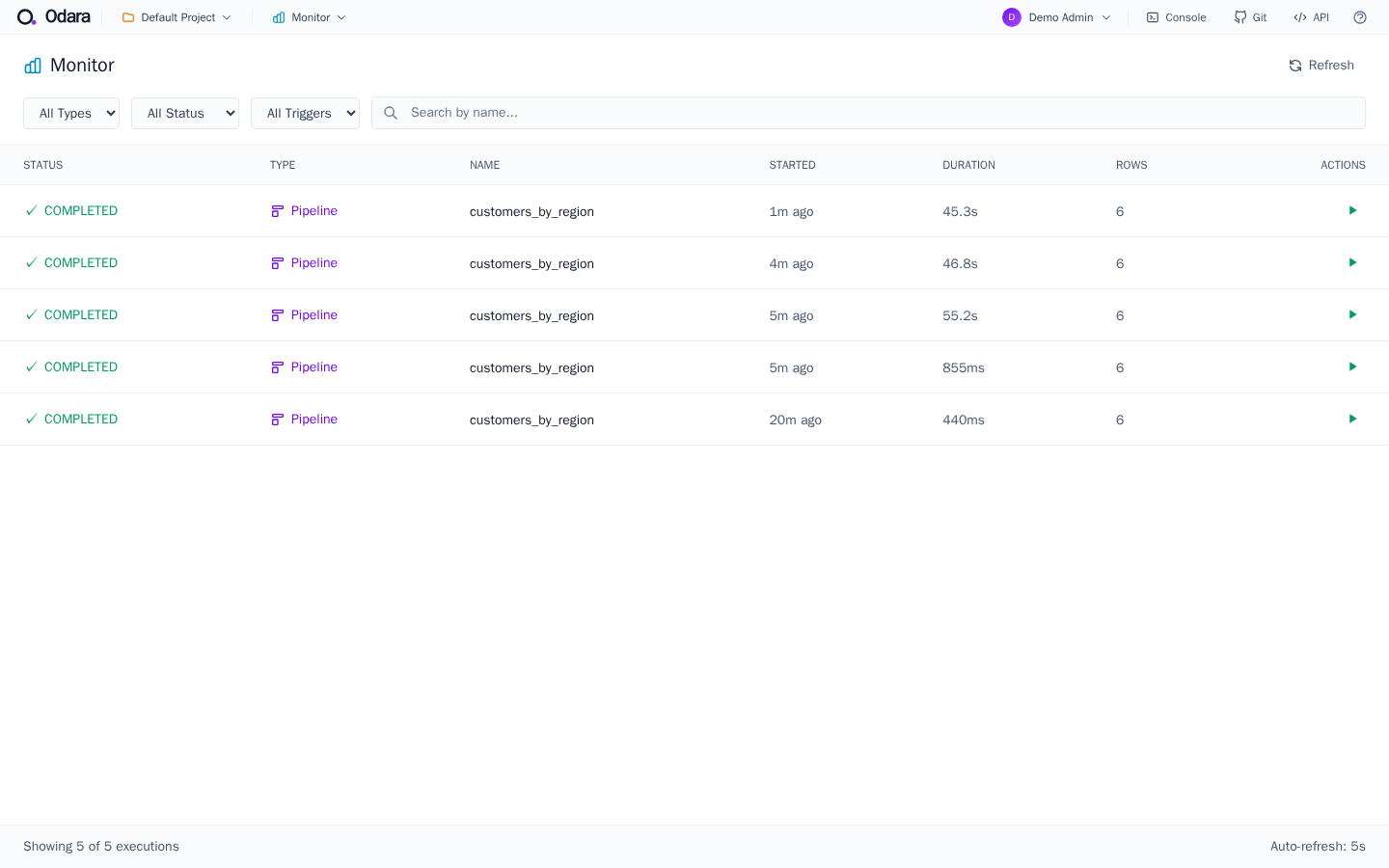
3. Which environment did a run use?
Open Monitor. Runs are listed as usual; here the same pipeline ran in DEV (440 ms, Local), STG (855 ms, Docker), PROD (55 s and 45 s, Fargate) and QA (47 s, Cloud Run). An isolated run includes the time to start its machine.
Open a run: its first log line names the environment, the second (for an isolated run) where it ran.
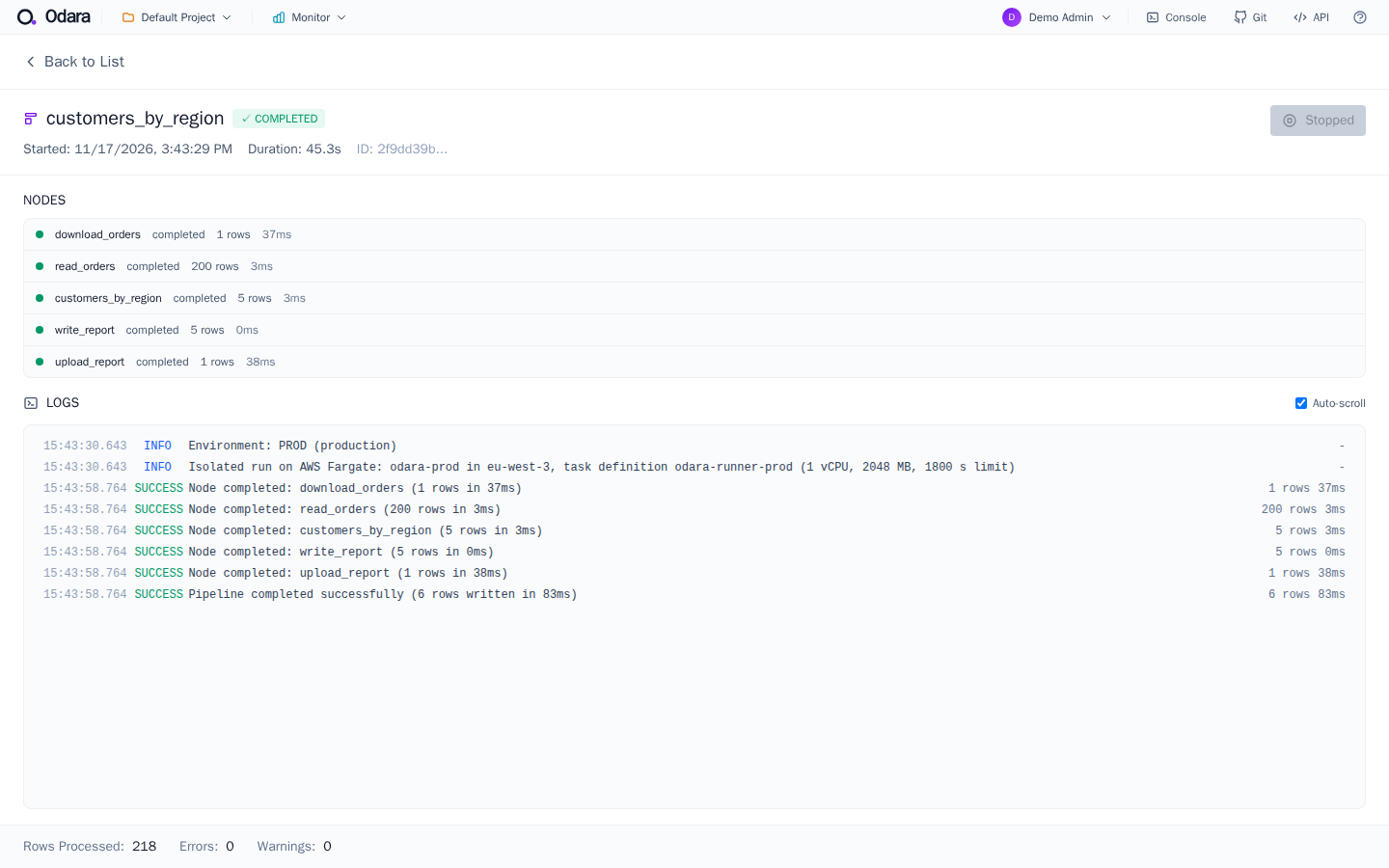
Environment: PROD (production)
Isolated run on AWS Fargate: odara-prod in eu-west-3, task definition odara-runner-prod (1 vCPU, 2048 MB, 1800 s limit)
4. Through the API
POST /api/v1/pipelines/:id/run takes the environment's id in the
body:
curl -s -X POST \
  -H "Authorization: Bearer $TOKEN" -H 'Content-Type: application/json' \
  -d '{"environment":"staging"}' \
  http://localhost:3002/api/v1/pipelines/<pipeline-id>/run
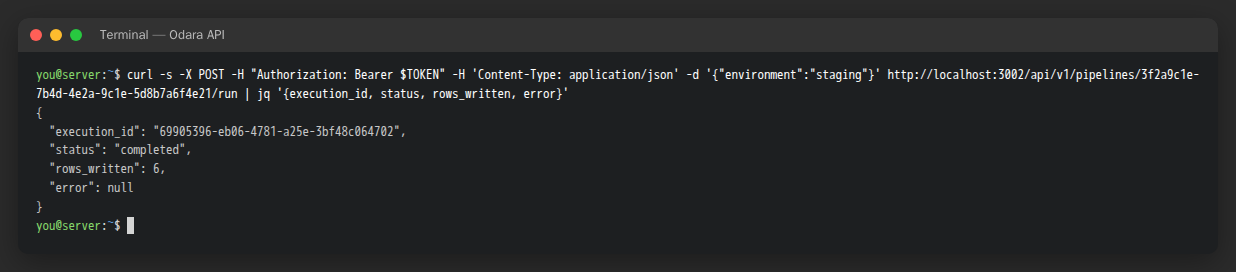
?environment=stagingin the query works too.GET …/run-streamandPOST /api/v1/maestros/:id/executetake?environment=.baseor an unknown id is refused with 400.- Without it, the run uses the active environment, as before.
- In a Maestro run, every child pipeline (parallel ones included) runs in the Maestro run's environment.
5. Pin a schedule to an environment
Open Schedule › New Schedule, choose the pipeline and when it runs. The Environment list shows each environment with its Execution badge:
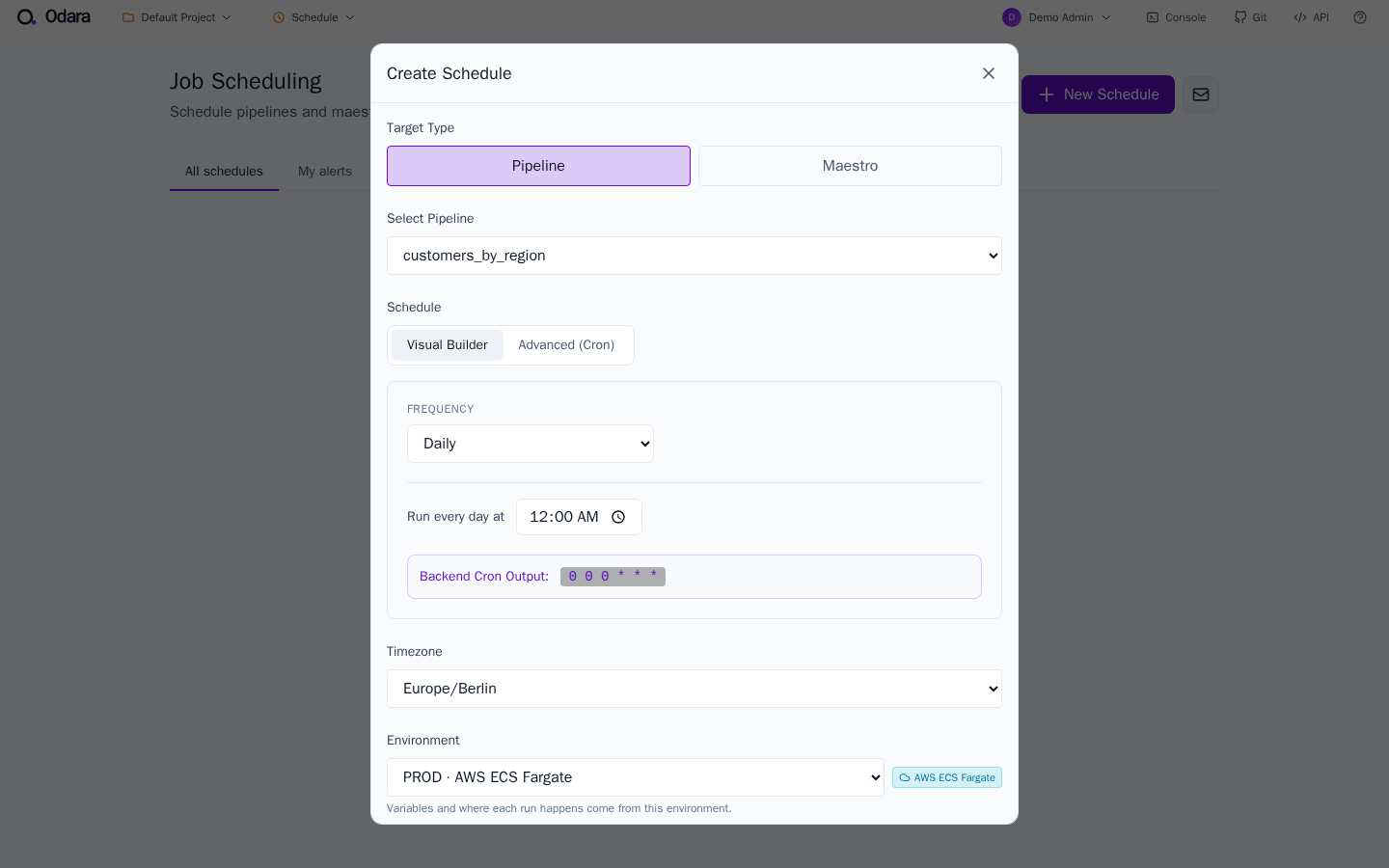
Choose PROD · AWS ECS Fargate and create it. The list shows the environment and where it runs, under the pipeline's name:
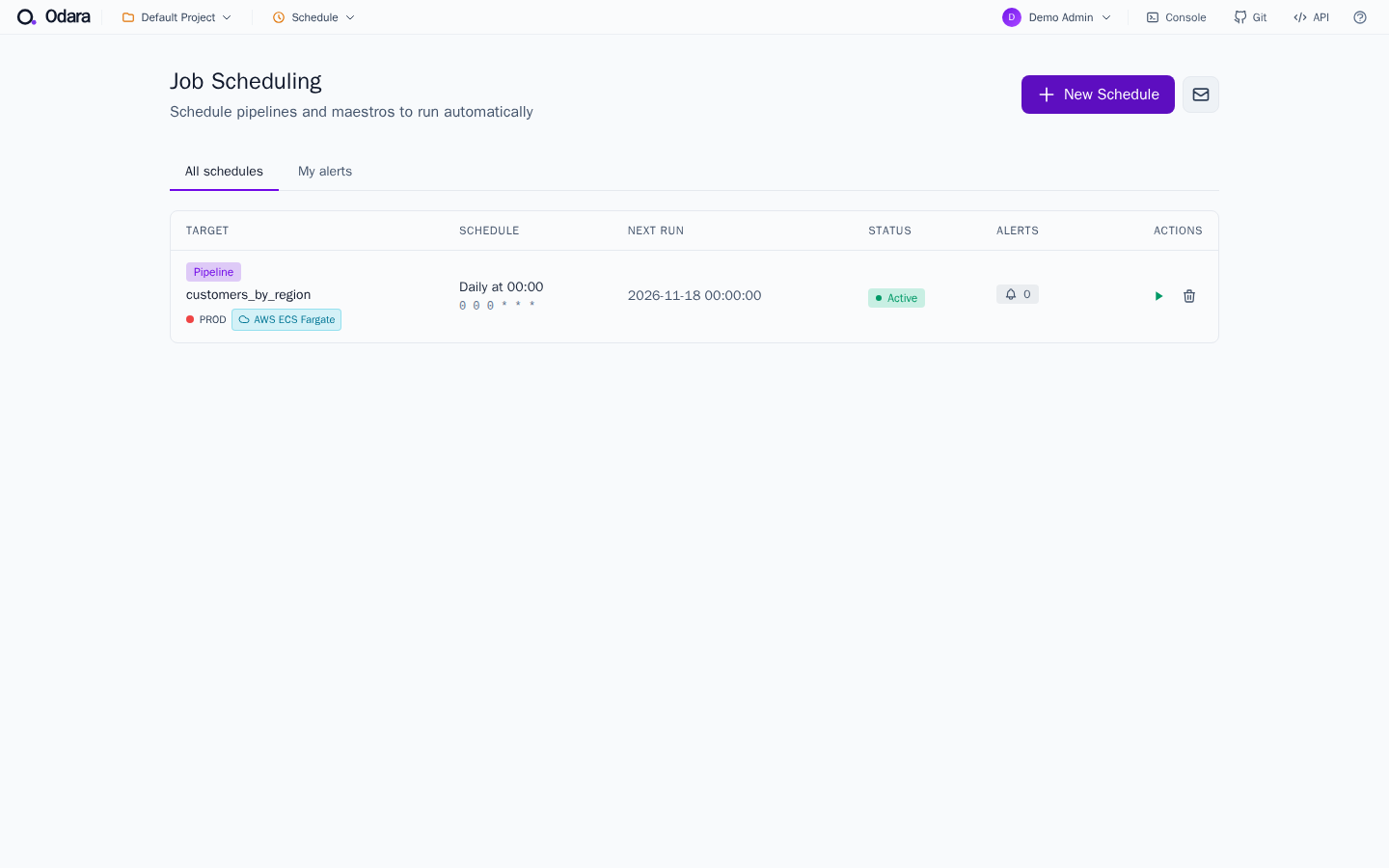
Every run of this schedule now uses PROD's variables and runs on Fargate, whatever environment is active on the server. Leave Environment empty and the schedule uses the environment that is active when it fires (the behaviour before 0.4.0).
Recap
| You want | Do |
|---|---|
| Try one run in another environment | Editor top bar → pick it → Execute |
| Run in an environment from a script | {"environment":"<id>"} in POST …/run |
| A nightly job always in PROD | Schedule › Environment = PROD |
| Change the default for everything else | Admin › Environments › Make active |
| Change where an environment runs | Admin › Environments › Execution |