AI Assistant → SQL
One line: type one sentence describing what you want, and the AI Assistant plans and builds the whole pipeline — source, a SQL Transform with a window function, and a target — that you run as-is.
This walkthrough uses Odara's AI Assistant in Compose mode: you describe a goal in plain English, the AI proposes an ordered plan, and on approval it drops every node onto the canvas with the SQL already written. Reading time 12 minutes.
By the end you will know how to:
- Configure an AI provider (DeepSeek here; any supported provider works)
- Use Compose mode to generate a full pipeline from one prompt
- Read the AI's plan and apply it to the canvas
- Review and (if needed) adjust the generated SQL
- Run it and verify the result
Files
Download this into a local folder (the example uses
/tmp/tutorials/ai-sql/ but any absolute path on the machine where
Odara runs works):
- orders.csv — 800 e-commerce orders
(
order_id,order_date,category,amount,status).
1. Open the AI Assistant
Create a new pipeline so you have an empty canvas, then click AI Assistant at the bottom of the sidebar. The panel slides in from the right.
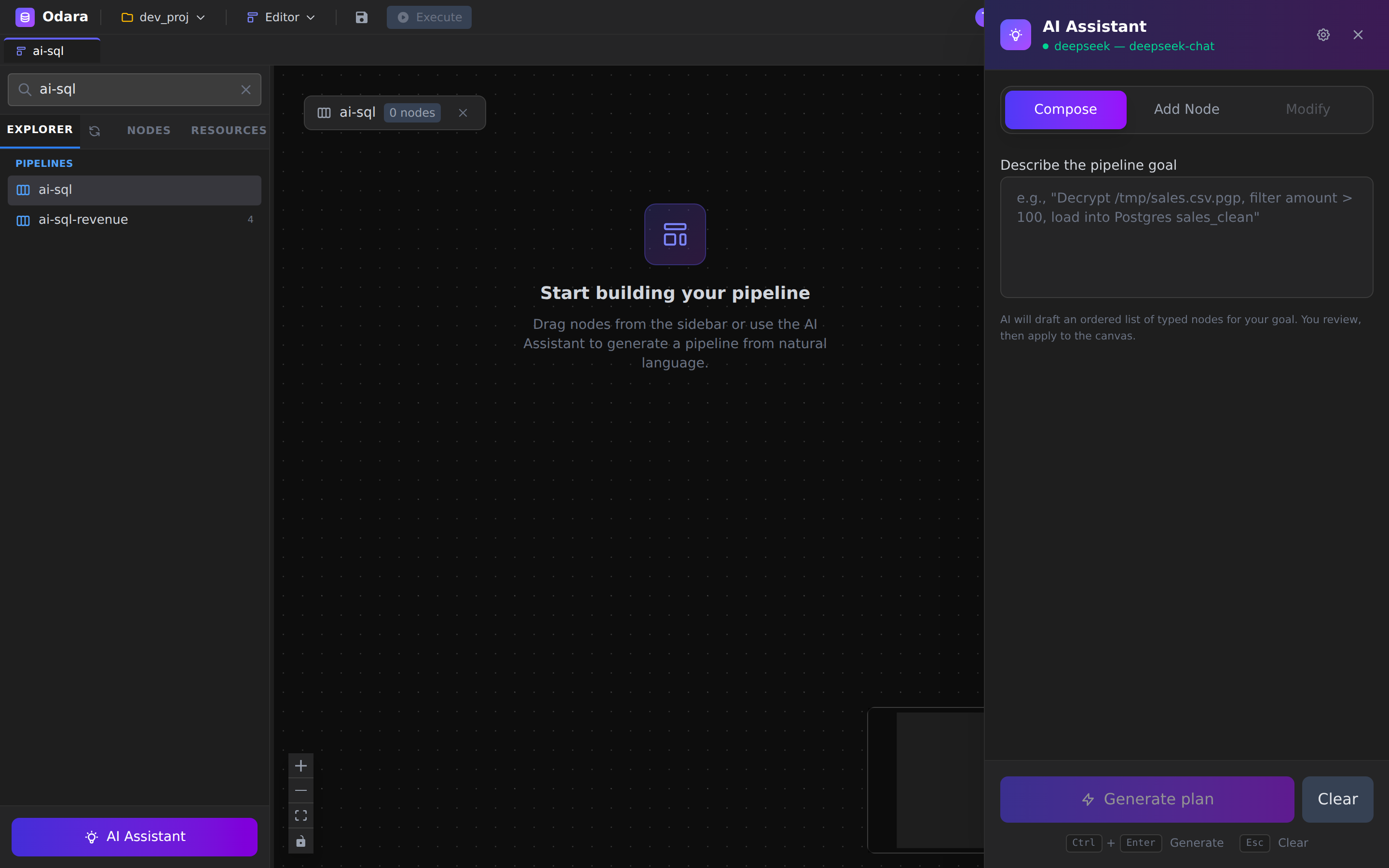
Three modes sit at the top:
- Compose — describe a goal, the AI plans the entire pipeline.
- Add Node — select existing nodes and have the AI add one transform.
- Modify — ask the AI to rewrite a selected node's code.
We'll use Compose, which is the default on an empty canvas.
2. Configure the AI provider (once)
Click the gear icon in the panel header. Pick a provider, paste its API key, choose a model, and Test connection.
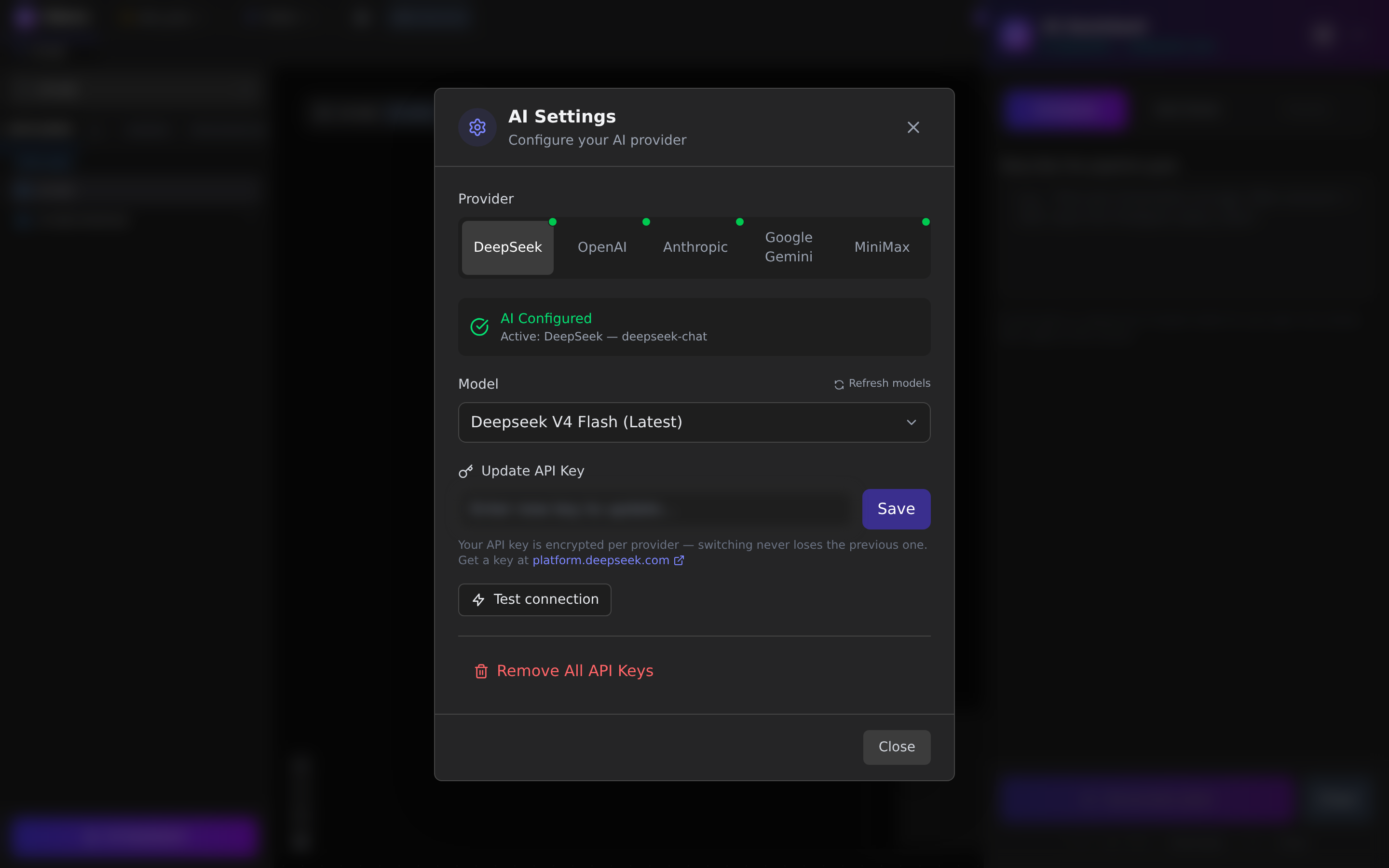
- Odara supports DeepSeek, OpenAI, Anthropic, Google, MiniMax.
- The key is encrypted per provider — switching providers later never loses a stored key.
- The green AI Configured badge means you're ready. The status dot in the panel header turns green and shows the active provider/model.
This walkthrough uses DeepSeek (
deepseek-chat) — cheap and strong at code. Any configured provider produces the same flow.
3. Describe the pipeline
In Compose mode, type your goal into the box. Be specific about the source, the transformation, and the target — the AI uses every detail.
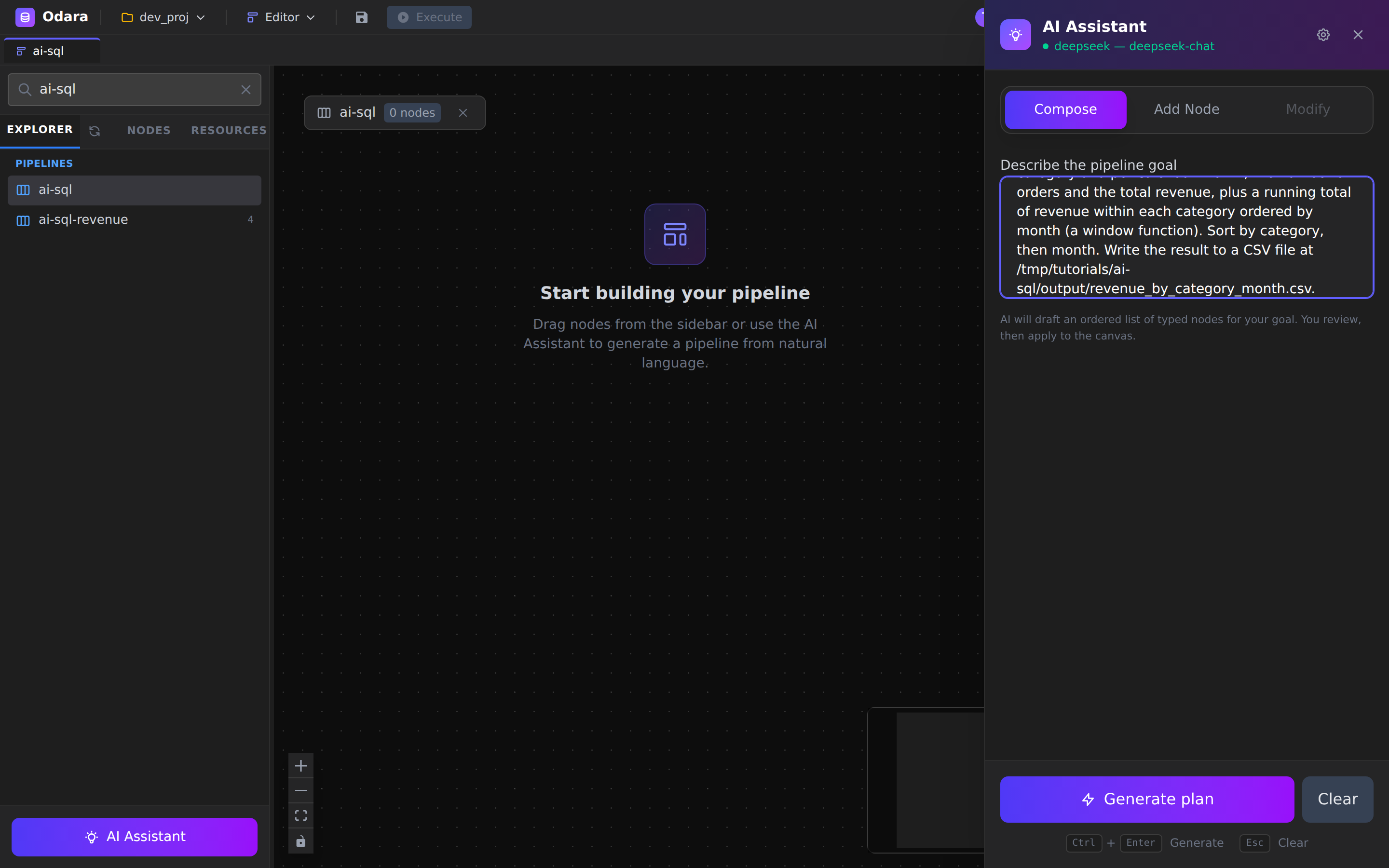
Read orders from the CSV file at /tmp/tutorials/ai-sql/orders.csv
(columns: order_id, order_date, category, amount, status). Keep only
orders whose status is "completed". Then compute, per category and per
calendar month, the number of orders and the total revenue, plus a
running total of revenue within each category ordered by month (a window
function). Sort by category, then month. Write the result to a CSV file
at /tmp/tutorials/ai-sql/output/revenue_by_category_month.csv.
Click Generate plan (or Ctrl+Enter).
4. Review the plan
The AI returns an ordered plan — one typed node per step, each with a short why. Nothing is on the canvas yet; this is your chance to sanity-check the shape before committing.
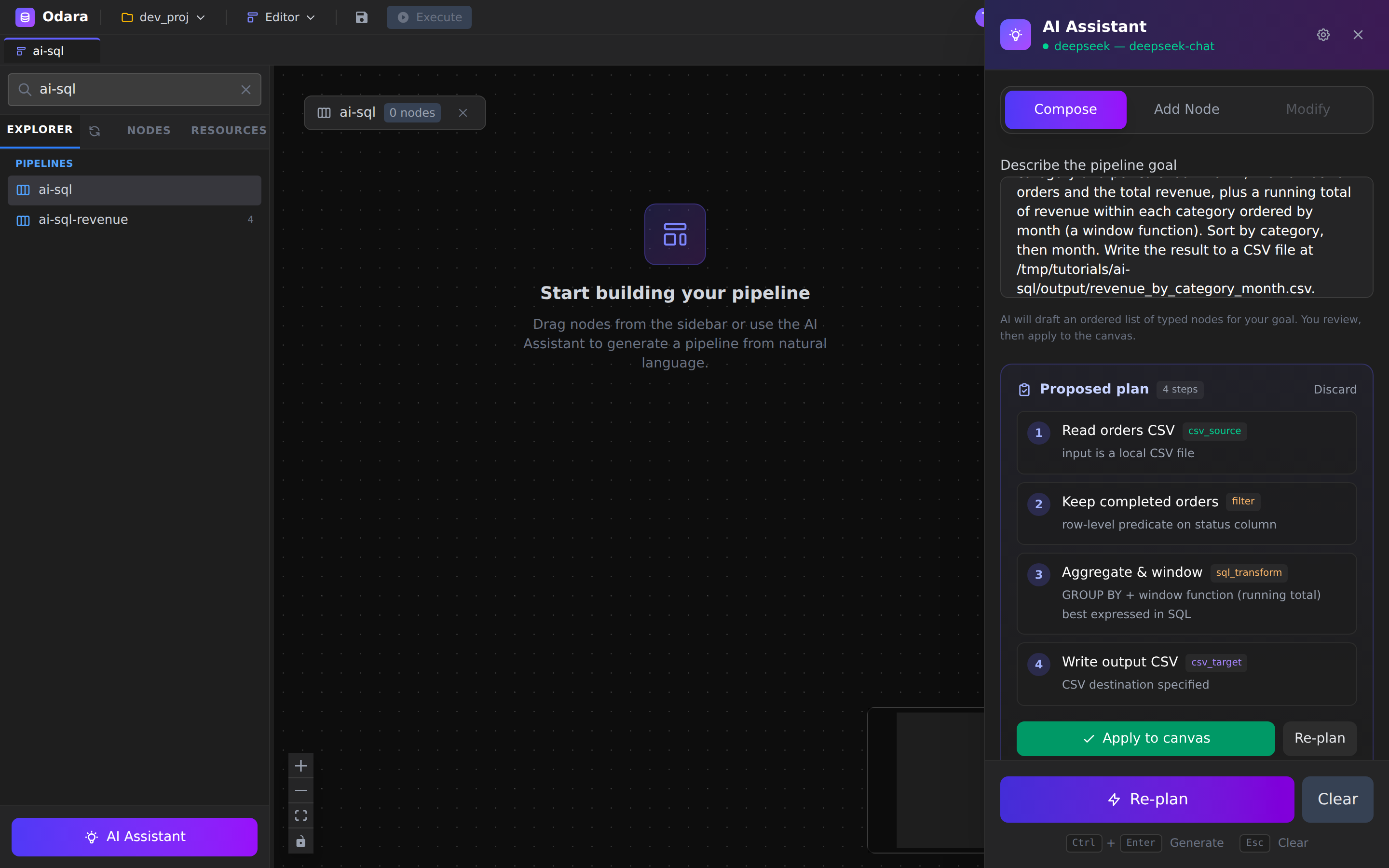
For our prompt the plan is four nodes:
- Read orders CSV —
csv_source - Keep completed orders —
filter(a row-level predicate) - Aggregate & window —
sql_transform(GROUP BY + the running total) - Write output CSV —
csv_target
Notice the AI split the simple status = 'completed' filter into its own
Filter node and reserved the SQL Transform for the real work —
the aggregation and window function. If the plan looks wrong, hit
Re-plan; otherwise click Apply to canvas.
5. The pipeline appears, fully wired
Apply expands the plan into real nodes with filled-in configs — including the SQL — and connects them in order.
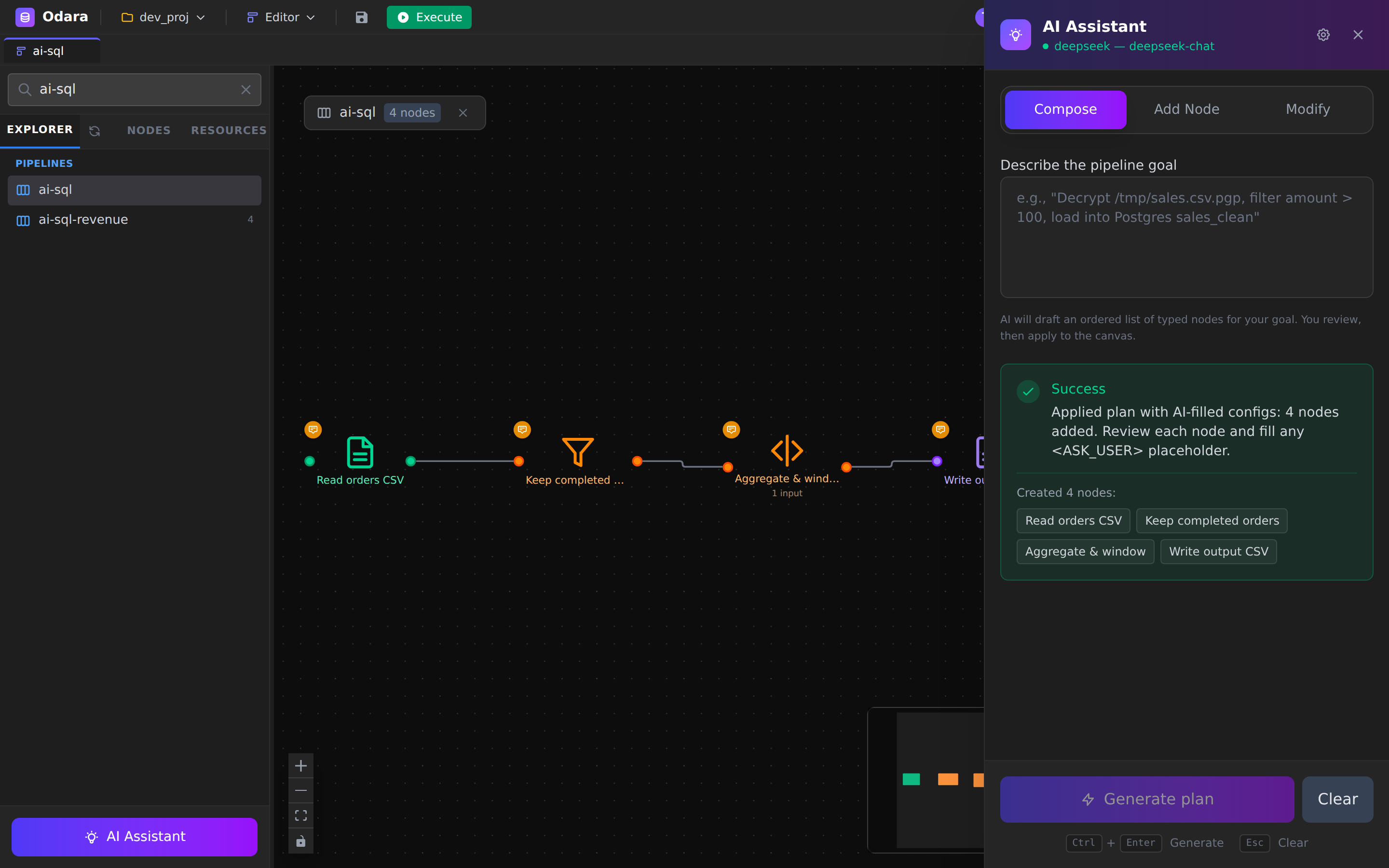
The green Success card lists what was created. Each node also gets a sticky-note comment explaining its role.
6. Review the generated SQL
Click the Aggregate & window node. The SQL the AI wrote is right there in the SQL Query editor:
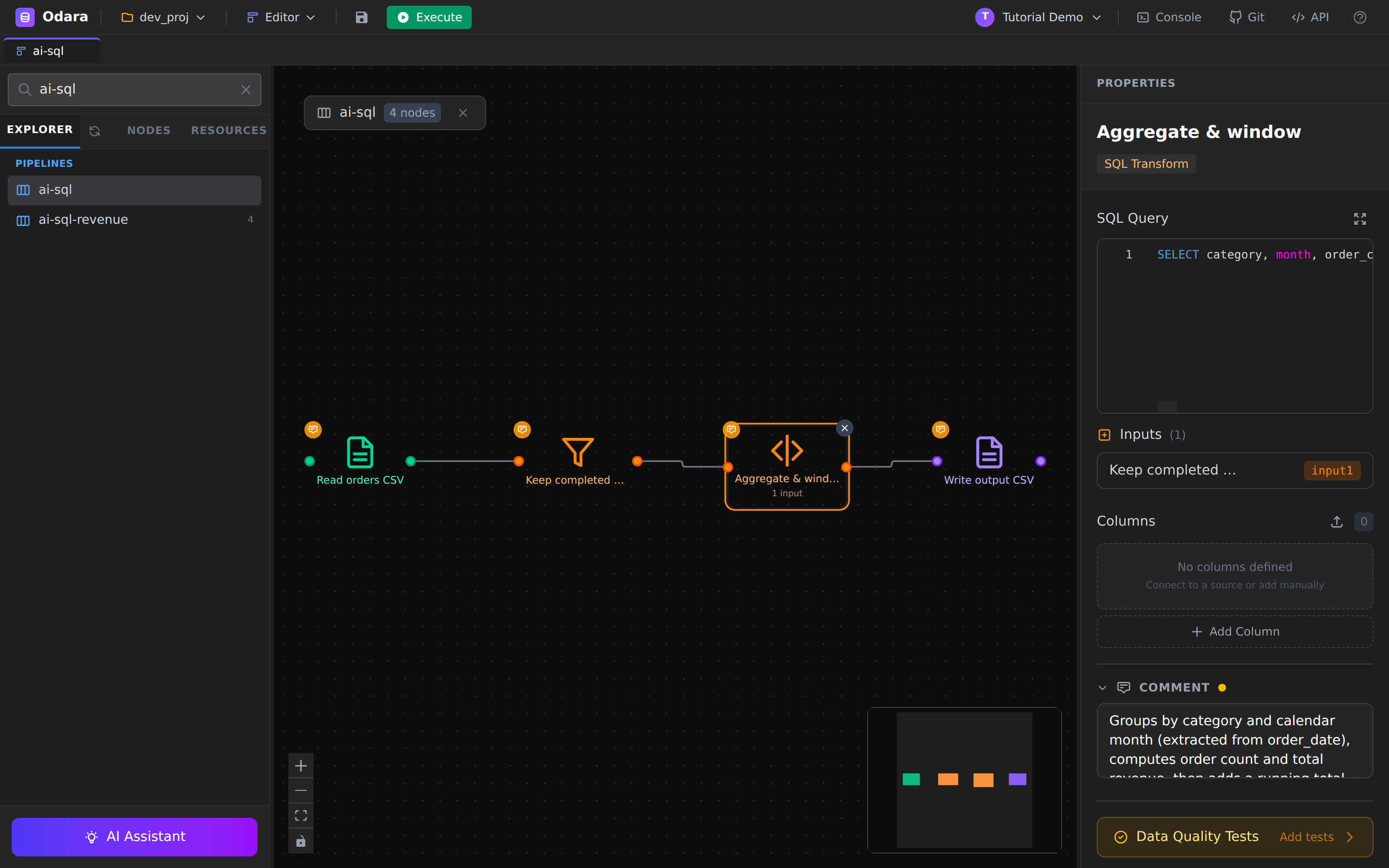
SELECT category, month, order_count, revenue,
       SUM(revenue) OVER (PARTITION BY category ORDER BY month) AS running_total_revenue
FROM (
  SELECT category,
         DATE_TRUNC('month', order_date) AS month,
         COUNT(*) AS order_count,
         SUM(amount) AS revenue
  FROM input
  GROUP BY category, DATE_TRUNC('month', order_date)
) sub
ORDER BY category, month
That's a correct, non-trivial query: a grouped aggregate wrapped in a window function for the per-category running total.
Always review what the AI writes. In our run it ran as-is — the CSV reader inferred
order_dateas a date andamountas a number, so no casts were needed. Two things to check on your own data:
- Input name — Odara exposes a single upstream as both
inputandinput1. If the AI references a name your engine doesn't recognise, rename it here.- Types — if a column comes in as text, wrap it (
CAST(amount AS DOUBLE),CAST(order_date AS DATE)) before aggregating. This is the "review and adjust" step — the AI gets you 95% there, you own the last 5%.
7. Run and verify
Hit Execute. The run finishes in tens of milliseconds.
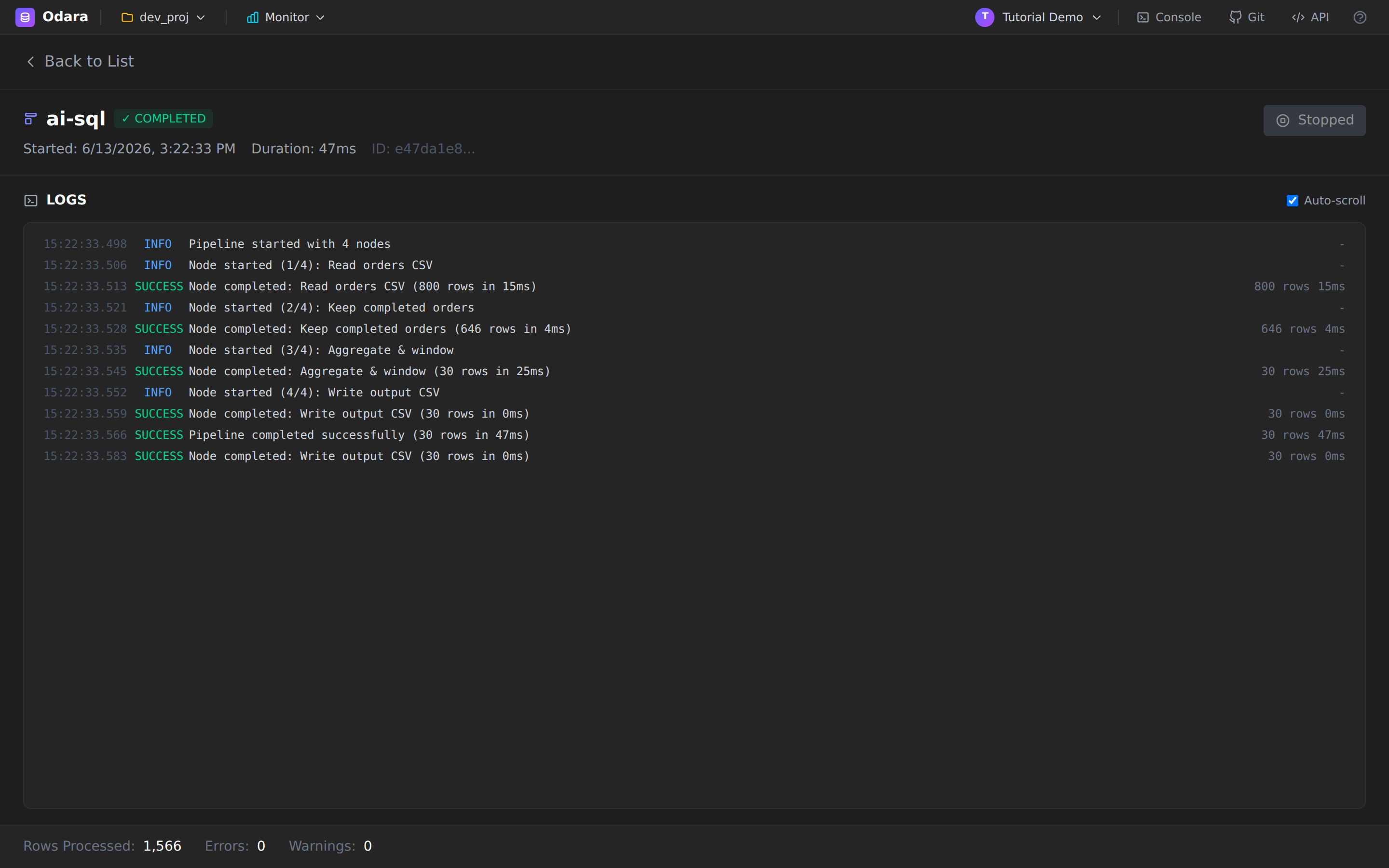
Reading the LOGS top-to-bottom:
Read orders CSV— 800 rowsKeep completed orders— 646 rows (the cancelled/returned dropped)Aggregate & window— 30 rows (5 categories × 6 months)Write output CSV— 30 rows
On disk:
$ head -4 /tmp/tutorials/ai-sql/output/revenue_by_category_month.csv
category,month,order_count,revenue,running_total_revenue
Books,2026-01-01T00:00:00,22,820.34,820.34
Books,2026-02-01T00:00:00,15,522.53,1342.87
Books,2026-03-01T00:00:00,22,639.74,1982.61
The running_total_revenue column climbs within each category — exactly
what the window function was asked to do.
Cheat sheet
| I want to… | Do this |
|---|---|
| Build a whole pipeline from a sentence | AI Assistant → Compose, describe source + transform + target. |
| Sanity-check before committing | Read the plan; click Re-plan if it's wrong. |
| Drop the generated nodes on the canvas | Apply to canvas. |
| See/edit the AI's SQL | Click the SQL Transform node → SQL Query. |
| Reference the upstream table in SQL | input or input1. |
| Fix a string column before math | CAST(col AS DOUBLE) / CAST(col AS DATE). |
| Switch AI provider without re-entering keys | Settings → pick another provider tab (keys are stored per provider). |
What you learned
- Compose mode turns one sentence into a full pipeline — source, filter, SQL Transform, and target, wired and configured.
- The AI plans first (typed steps + why), so you approve the shape before any node lands on the canvas.
- It writes real SQL, including window functions, and infers output columns — but you should always review and adjust types and the input table name.
- The generated pipeline is a normal Odara pipeline: run it, monitor it, edit it like any other.