Magic File + Iterate
One line: point FileList at a folder containing a CSV, an Excel and a JSON file, let Iterate run the downstream graph once per file, and let Magic File auto-detect each format — every row lands in one consolidated CSV, tagged with the file it came from.
This walkthrough builds a pipeline that survives the messiest input folder you can throw at it. Reading time 10 minutes; running time on the demo dataset is well under a second.
By the end you will know how to:
- List a local folder with the FileList source
- Wire the dashed iterate edge and loop the downstream subgraph once per file with the Iterate node
- Read any of CSV / JSON / NDJSON / Parquet / Excel with a single Magic File source — no format configured anywhere
- Use
@file.*variables inside SQL queries and target paths - Append every iteration into one CSV, and write one JSON file per iteration at the same time
Files
Download these three files — same columns, three different formats —
into a local folder. The example uses
/tmp/tutorials/magic-file/inputs/, but any absolute path on the
machine where Odara runs works:
- sales_jan.csv — January sales, plain CSV with a header row
- sales_feb.xlsx — February sales, an Excel workbook
- sales_mar.json — March sales, a JSON array of objects
All three carry the same logical schema: id, customer, product,
qty, total, sale_date — 10 rows each. That's the point of the
exercise: same data, three encodings, one pipeline.
1. The shape of the pipeline
Six nodes. One source lists the folder, Iterate fans out per file, and the per-file subgraph reads → normalises → writes to two targets.
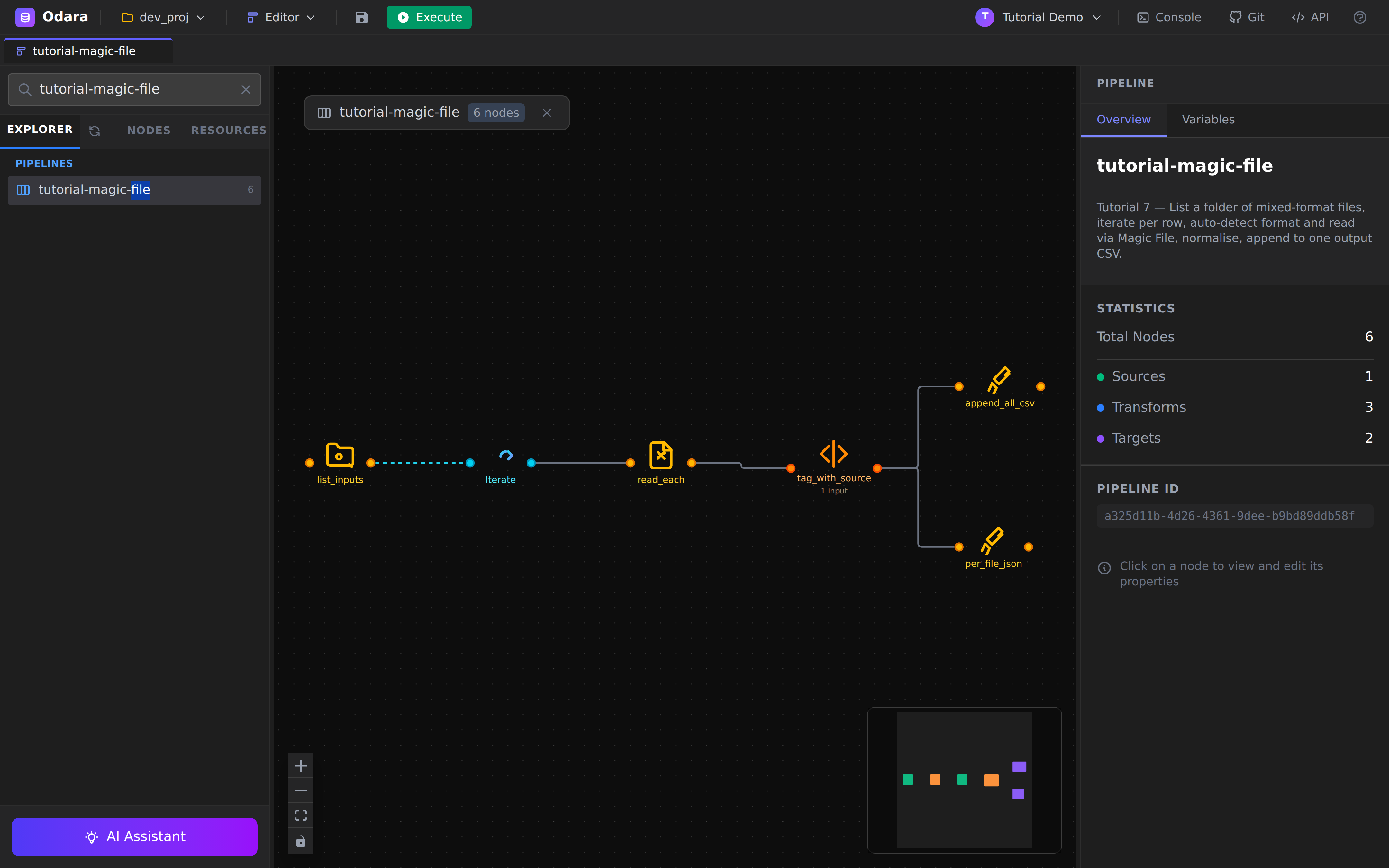
Two things to notice before clicking anything:
- The edge between list_inputs and iterate is dashed — that's an iterate edge, a different kind from the solid data edges everywhere else. It means "feed me one row at a time", not "hand me the whole table".
- After the SQL Transform the graph fans out to two targets: the same normalised rows are appended to one consolidated CSV and written to a fresh JSON file per iteration.
2. FileList — list the folder
Click list_inputs. FileList is the simplest source in the palette: give it a directory, get back one row per entry.
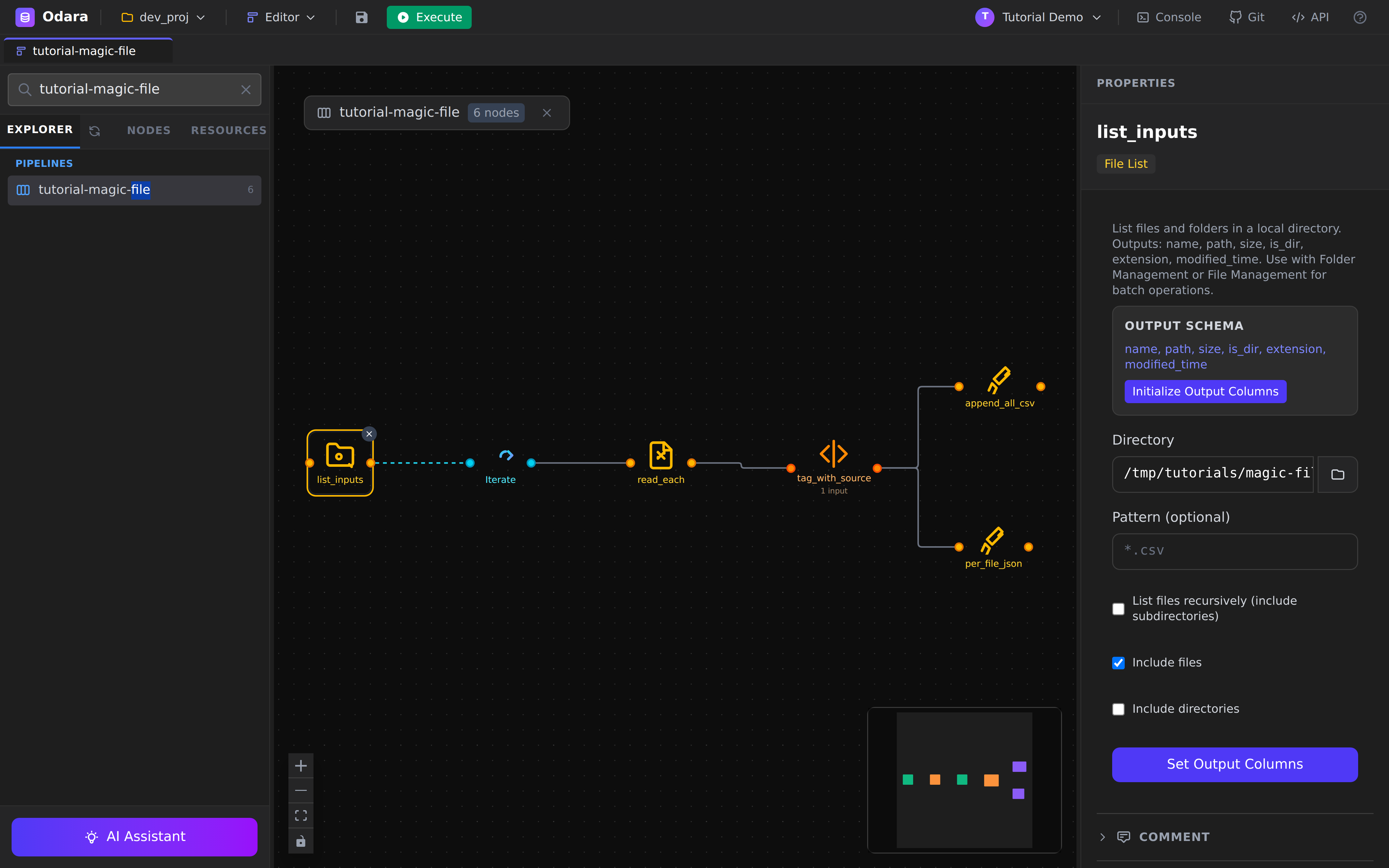
- Directory —
/tmp/tutorials/magic-file/inputs(absolute path on the machine where the Odara API runs). - Pattern — left empty here, so everything in the folder is
listed. Set e.g.
*.csvto filter. - Include files ✓ / Include directories ✗ — we only want
files; the output schema's
is_dircolumn would let you filter downstream too, but unticking is cleaner.
The output schema is fixed and shown in the panel: name, path,
size, is_dir, extension, modified_time (plus stem, the
filename without extension — it will earn its keep in §6). With our
three files this source emits exactly 3 rows.
Gotcha:
Patternfilters files only — directories are governed solely by the include-directories toggle.
3. Iterate — run the subgraph once per row
Click iterate_per_file. This is the control-flow heart of the pipeline.
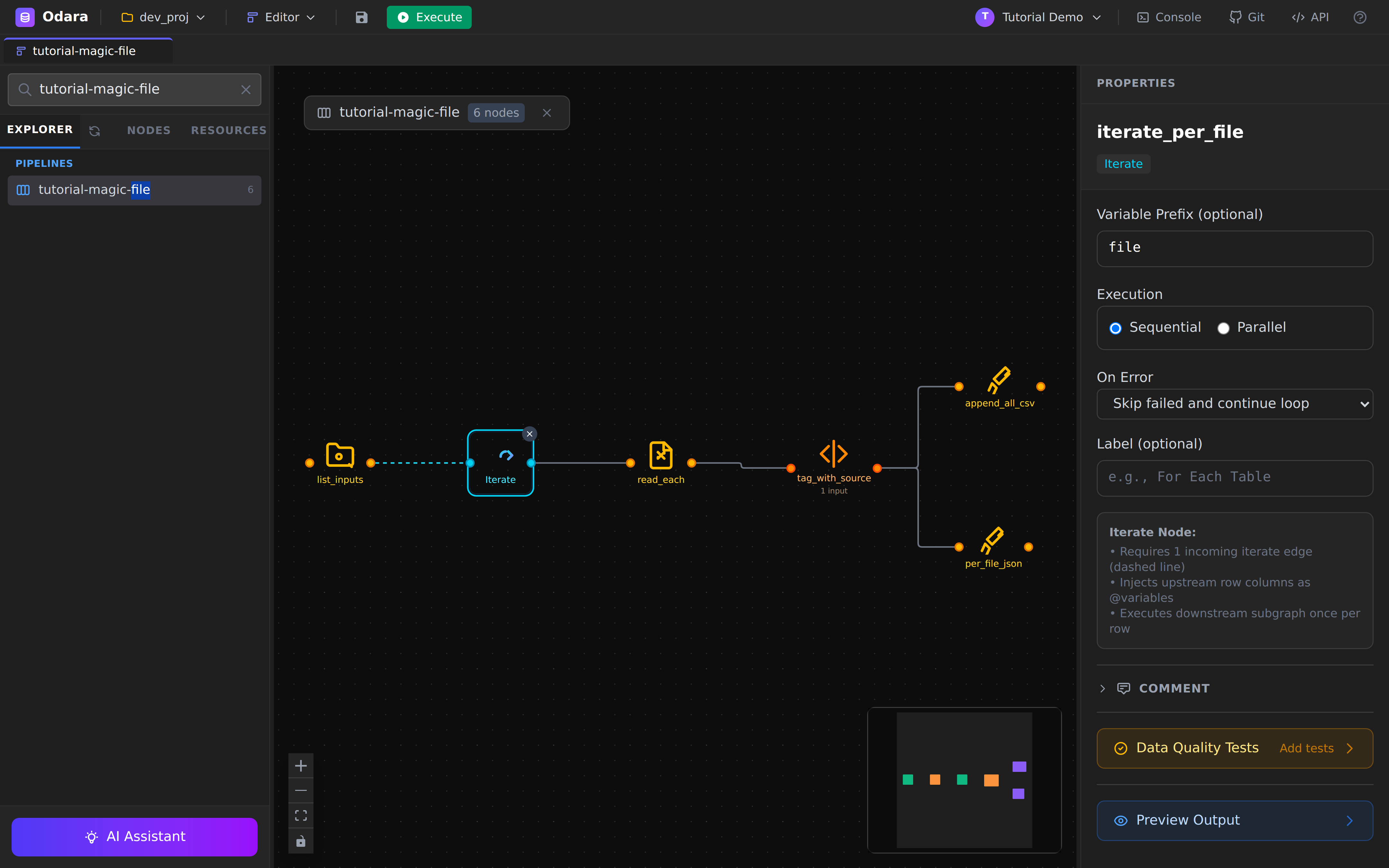
The info box in the panel summarises the contract:
- it requires one incoming iterate edge (the dashed one),
- it injects the upstream row's columns as
@-variables, - it executes the downstream subgraph once per row.
Three knobs:
- Variable Prefix —
file. Each column of the incoming row becomes a variable named@file.<column>:@file.path,@file.name,@file.stem, and so on. Pick a prefix that reads well in the places you'll use it. - Execution —
Sequential. Files are processed one at a time, in listing order.Parallelruns iterations concurrently — faster, but don't combine it with an appending target unless you're happy with interleaved write order. - On Error —
Skip failed and continue loop. If one file is corrupt, the loop logs the failure and moves on to the next file instead of failing the whole run.
4. Magic File source — read without knowing the format
Click read_each. Here's the trick that makes one pipeline handle three formats:
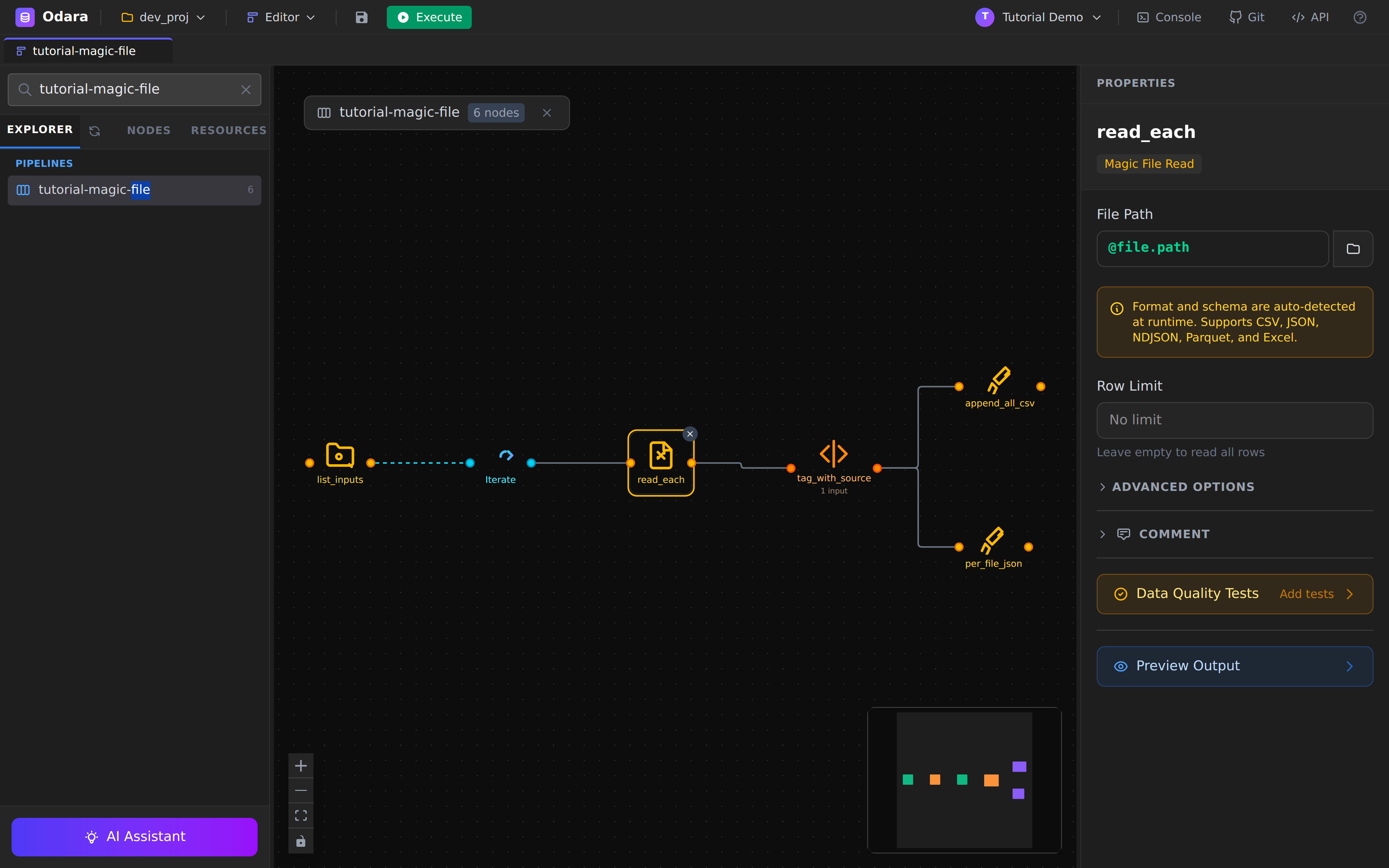
- File Path —
@file.path. Not a real path: on each iteration, Iterate substitutes the current row'spathcolumn. First iteration readssales_feb.xlsx, thensales_jan.csv, thensales_mar.json(listing order). - Format — nowhere to be seen, and that's the feature. Magic File sniffs the content of the file (magic bytes + a sample of the head) and picks the right reader. It supports CSV, JSON, NDJSON, Parquet and Excel, and works even when the file has no extension at all.
- Row Limit — empty (read everything). Useful for smoke-testing
a huge folder with
1000.
5. SQL Transform — normalise and tag
Click tag_with_source. Three formats won't agree on types (Excel hands you numbers, CSV hands you strings), so we cast everything explicitly — and while we're here, we stamp each row with the file it came from:
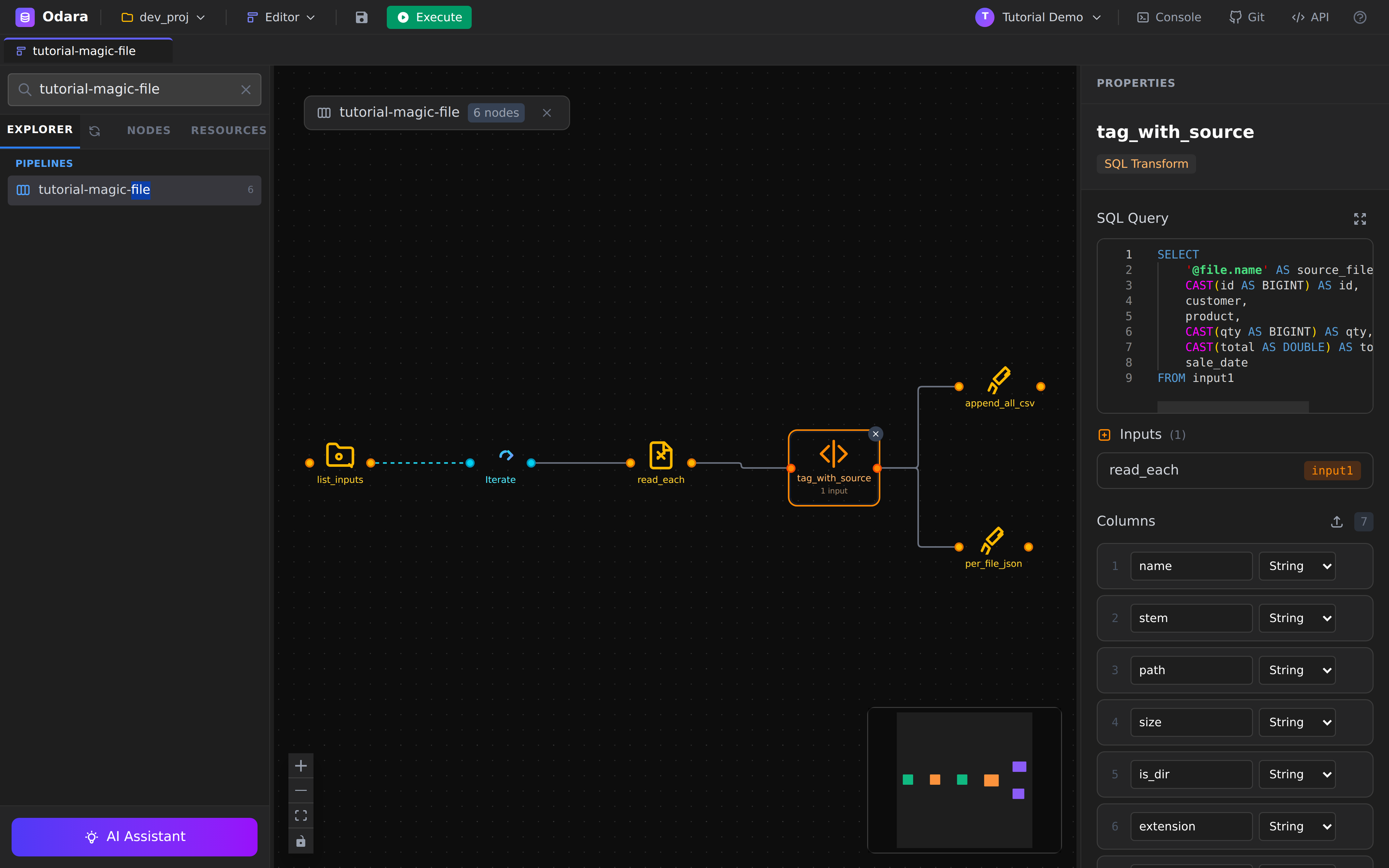
SELECT
    '@file.name' AS source_file,
    CAST(id AS BIGINT) AS id,
    customer,
    product,
    CAST(qty AS BIGINT) AS qty,
    CAST(total AS DOUBLE) AS total,
    sale_date
FROM input1
Two details worth a pause:
'@file.name'inside the SQL string —@-variables are substituted before the query reaches the SQL engine, so they work anywhere a literal works. On the first iteration the line compiles to'sales_feb.xlsx' AS source_file.- The CASTs are the contract. Whatever the source format did to
the types, what leaves this node is always
BIGINT, BIGINT, DOUBLEfor the numeric columns. Without this, the consolidated CSV would silently mix3and3.0depending on which file a row came from.
6. Two Magic File targets
The same normalised rows go to two places at once.
6a. append_all_csv — one consolidated CSV
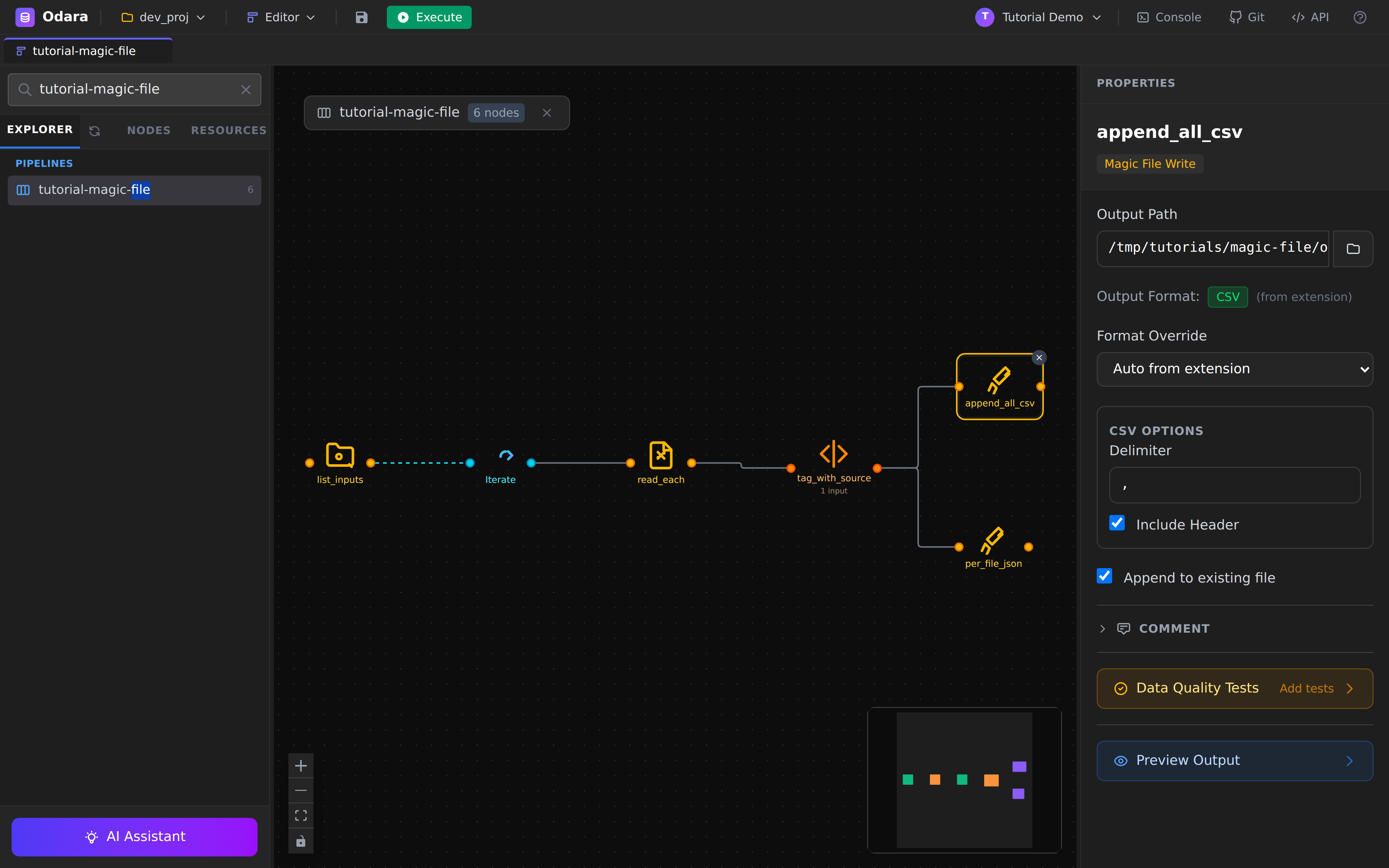
- Output Path —
/tmp/tutorials/magic-file/output/all_sales.csv. - Output Format — shows
CSV (from extension): on the write side, Magic File picks the format from the file extension (or you can force one with Format Override). - Append to existing file ✓ — this is what makes the loop accumulate. Iteration 1 creates the file with a header; iterations 2 and 3 append rows without repeating the header. Delete the output file before a re-run, or you'll keep accumulating across runs too.
6b. per_file_json — one JSON file per iteration
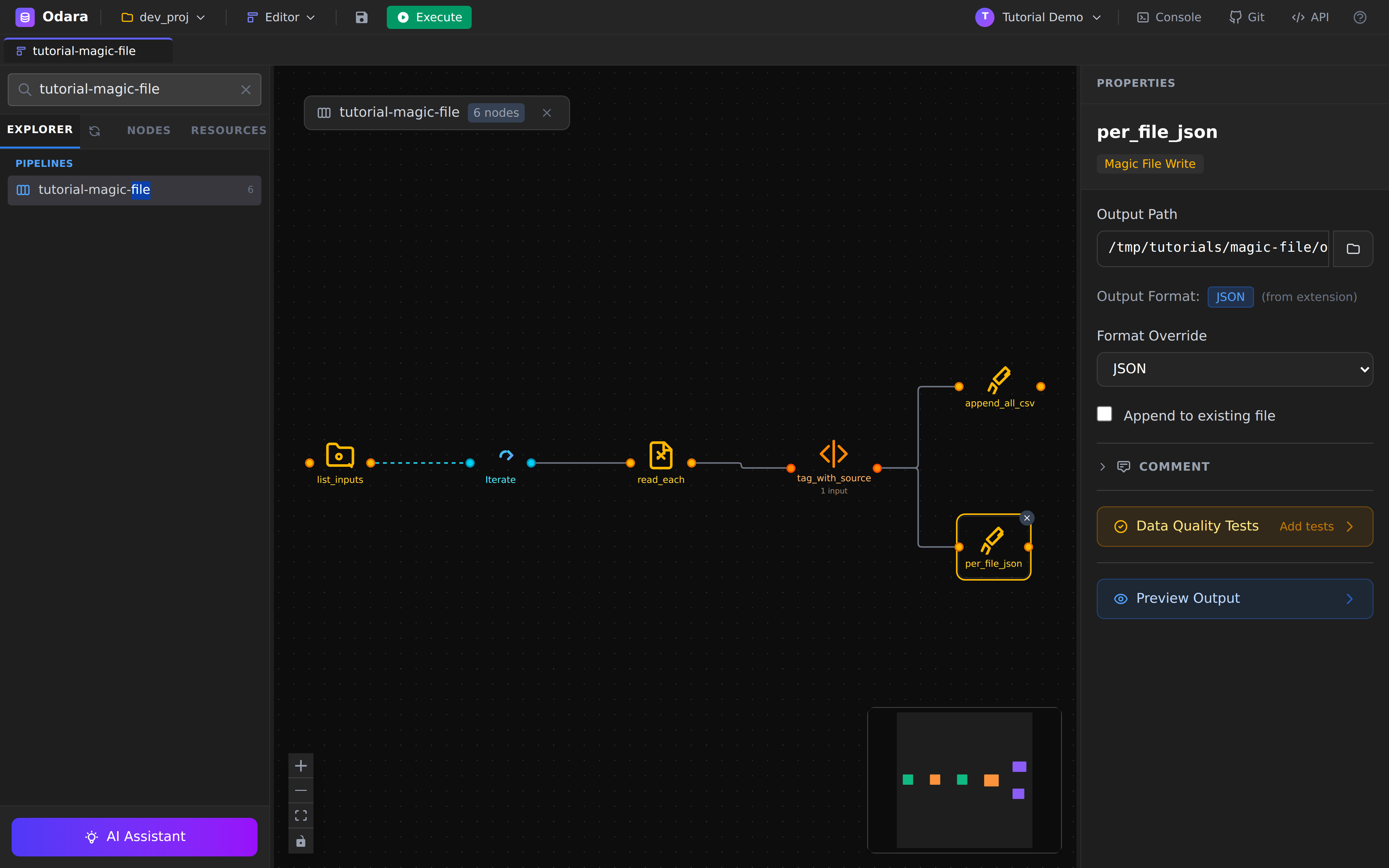
- Output Path —
/tmp/tutorials/magic-file/output/[email protected].@-variables work in target paths too:@file.stemexpands tosales_jan,sales_feb,sales_mar, so each iteration writes its own file instead of overwriting one. - Format Override —
JSON(the@in the path means the extension isn't trustworthy at config time, so we say it explicitly). - Append ✗ — each file is written fresh.
Note: Odara's JSON writer emits JSON Lines (one object per line), not a single JSON array. That's the format BigQuery, DuckDB, and
jqingest natively; if you need an array, post-process withjq -s '.' file.json.
7. Execute
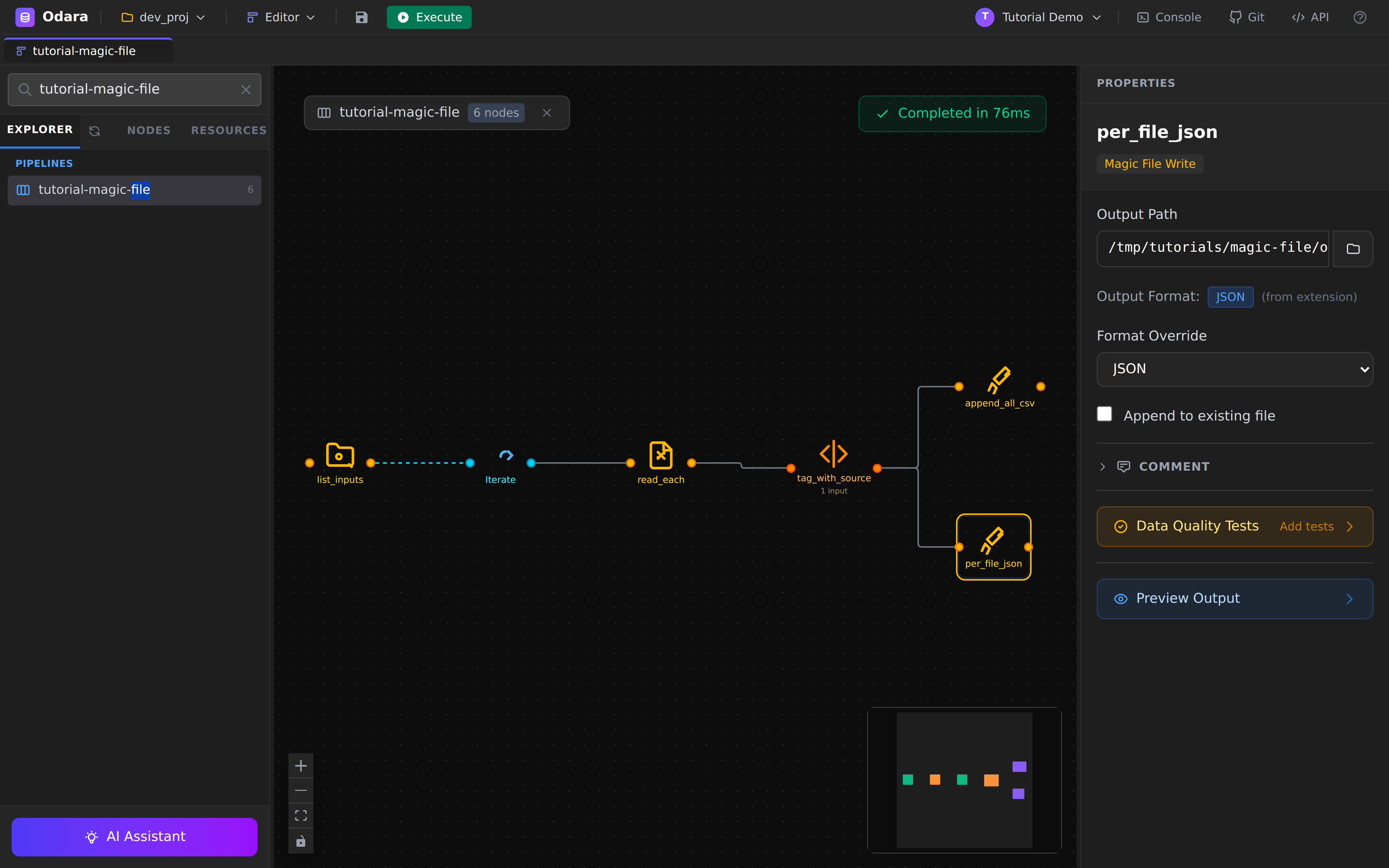
Hit Execute in the toolbar. With 30 rows across three files the whole run takes a few dozen milliseconds — the toolbar flips straight to the green completion badge:
8. Verify in Monitor
Switch to Monitor (top bar Editor ▼ → Monitor). Each run of the pipeline is one execution row:
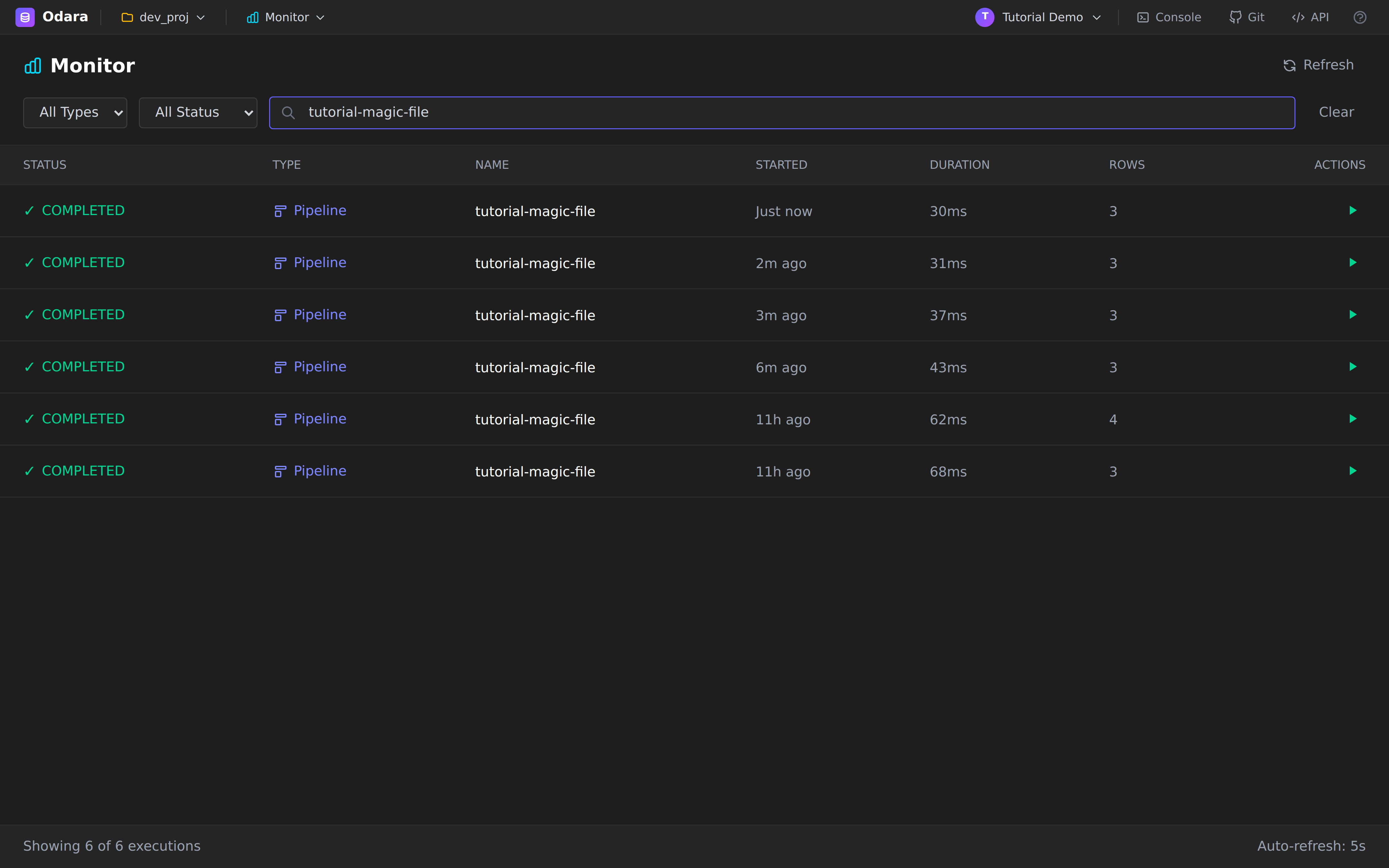
Click the fresh run to read the trace:
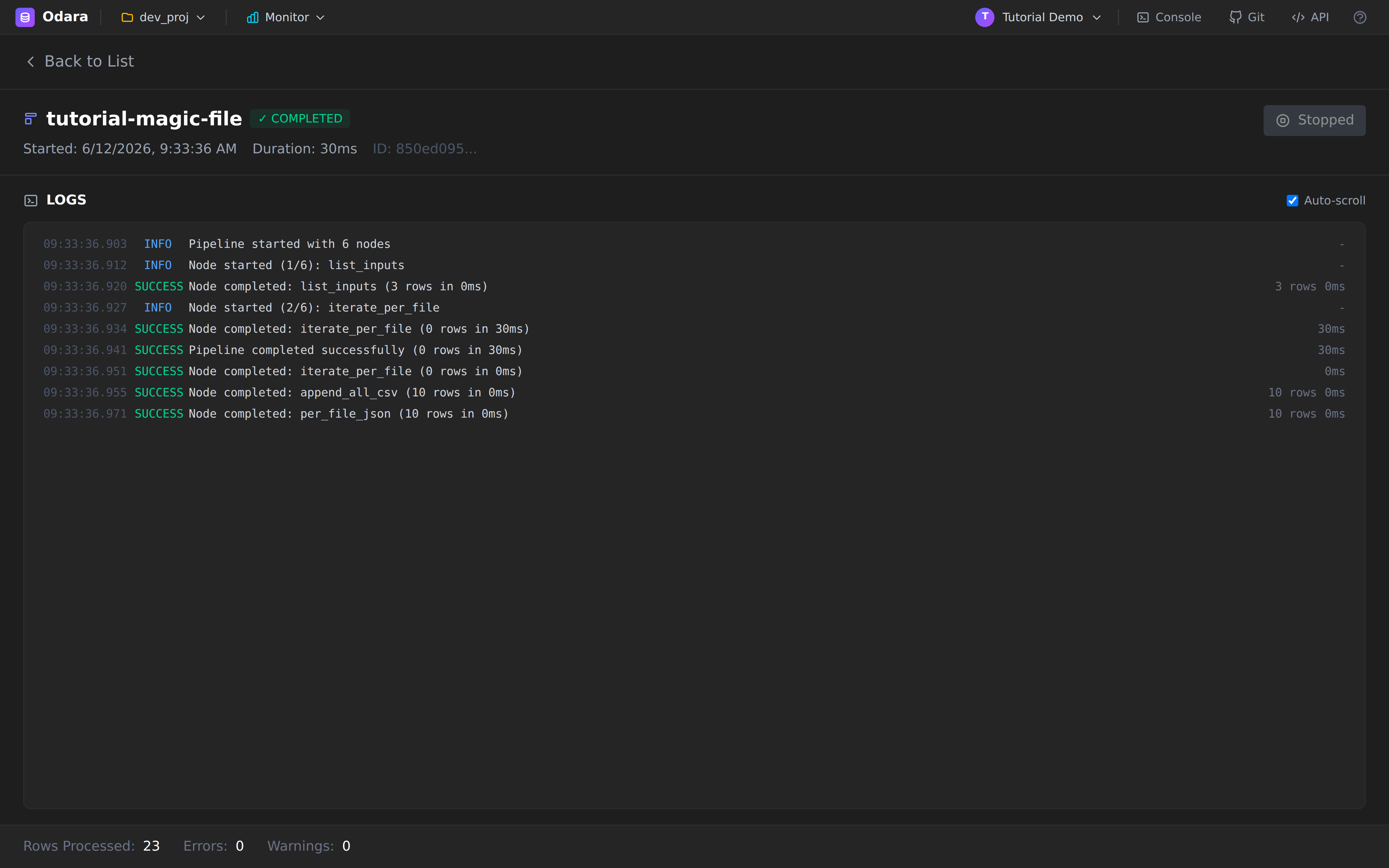
Reading the LOGS panel top-to-bottom:
list_inputscompleted — 3 rows (one per file in the folder)iterate_per_filestarted and drove the downstream subgraph once per row- inside each iteration,
append_all_csvandper_file_jsoneach report 10 rows — one file's worth
9. Verify on disk
$ ls /tmp/tutorials/magic-file/output/
all_sales.csv  normalized_sales_feb.json  normalized_sales_jan.json  normalized_sales_mar.json

$ head -4 /tmp/tutorials/magic-file/output/all_sales.csv
source_file,id,customer,product,qty,total,sale_date
sales_feb.xlsx,101,Isabel,Headphones,3,269.7,2025-02-10
sales_feb.xlsx,102,Isabel,USB-C Cable,1,14.5,2025-02-19
sales_feb.xlsx,103,Diana,Mouse Pad,1,22,2025-02-18

$ cut -d, -f1 all_sales.csv | sort | uniq -c
     10 sales_feb.xlsx
     10 sales_jan.csv
     10 sales_mar.json
      1 source_file
30 data rows, 10 from each format, every one tagged with its origin.
The source_file column is your lineage for free.
Cheat sheet
| I want to… | Do this |
|---|---|
| Read a file whose format I don't control | Magic File source — leave the format alone, it sniffs the content. |
| Loop a pipeline over every file in a folder | FileList → dashed iterate edge → Iterate → your subgraph. |
| Reference the current file inside the loop | @<prefix>.path, @<prefix>.name, @<prefix>.stem — prefix set on the Iterate node. |
| Collect all iterations into one file | Magic File target + Append to existing file (and clean the output between runs). |
| Write one output file per iteration | Put @<prefix>.stem in the target's Output Path. |
| List only some files | FileList Pattern (e.g. *.csv) — it filters files, not directories. |
| Survive one bad file in the folder | Iterate On Error = Skip failed and continue loop. |
| Speed up a big folder | Iterate Execution = Parallel — but not with an appending target. |
What you learned
- Magic File detects formats by content, not extension — one source node reads CSV, JSON, NDJSON, Parquet and Excel, even with no extension at all.
- The iterate edge is its own edge kind (dashed). FileList feeds Iterate one row at a time; everything after Iterate is a normal data graph that runs once per row.
@-variables go anywhere a literal goes — file paths, SQL strings, target paths. That's what turns one static graph into a per-file loop.- Casts are the seam between formats: normalise types in one SQL Transform and every downstream target sees a single, stable schema.
- Append mode +
@stempaths give you a consolidated file and per-file outputs from the same run.
That closes the seven walkthroughs. From here every pipeline you build is a remix: connectors, transforms, control flow, schedules, alerts, orchestration — you've seen the building blocks.